


欢迎加入我们~


USB4 数据线
此类数据线一般兼容雷电 4 接口,最大传输速率 40Gbps,用于将OPi AI Studio Pro连接到具有USB4 或者雷电 4 接口的电脑。
带有USB4或者雷电4接口的x86_64电脑
OPi AI Studio Pro 只能通过 USB4 接口接到电脑使用,所以请准备一台具有 USB4 或者雷电 4 接口的电脑。
Ubuntu22.04系统
目前 310P NPU 驱动包适配的最新 Ubuntu 系统为 Ubuntu22.04
ubuntu镜像官方网址1: https://releases.ubuntu.com/jammy
ubuntu22.04镜像下载链接1: https://releases.ubuntu.com/jammy/ubuntu-22.04.5-desktop-amd64.iso
ubuntu镜像网址2: https://mirrors.ustc.edu.cn/ubuntu-releases/22.04.5
Linux-5.15 内核
(1) 安装适配的内核版本Linux-5.15
sudo apt update
sudo apt install -y dkms net-tools gcc g++ make cmake pigz pciutils vim dos2unix unrar python3 python3-pip git-lfs git curl wget
sudo apt install -y linux-image-5.15.0-126-generic linux-modules-extra-5.15.0-126-generic
sudo apt install -y linux-headers-5.15.0-126 linux-headers-5.15.0-126-generic
(2) 设置Linux-5.15内核为默认启动项
a.打开/etc/default/grub 文件,并找到GRUB_DEFAULT设置,并将GRUB_DEFAULT设置为"Advanced options for Ubuntu>Ubuntu, with Linux 5.15.0-126-generic"
打开并编辑/etc/default/grub
sudo apt update
sudo apt install -y nano #或者sudo apt install -y vim
sudo nano /etc/default/grub #或者sudo vim /etc/default/grub
GRUB_DEFAULT="Advanced options for Ubuntu>Ubuntu, with Linux 5.15.0-126-generic"
更新GRUB配置
sudo update-grub
#重启设备使内核生效
reboot
重启设备后使用下面命令查看当前内核版本
uname -r
b. 如 果 电 脑 使 用 的 USB4 接 口 或 者 雷 电 4 接 口 , 还 需 要 在 GRUB 中 禁 用 下Thunderbolt 内核模块,不然当电脑接着 OPi AI Studio Pro 启动时会报 PCIe 相关的错误。
打开并编辑/etc/default/grub文件
sudo nano /etc/default/grub #或者sudo vim /etc/default/grub
在 GRUB_CMDLINE_LINUX 中加入 modprobe.blacklist=thunderbolt 配置GRUB_CMDLINE_LINUX_DEFAULT="quiet splash modprobe.lacklist=thunderbolt"
GRUB_CMDLINE_LINUX_DEFAULT="quiet splash modprobe.blacklist=thunderbolt"
更新GRUB配置并重启
sudo update-grub
sudo reboot
将用户设置为免密模式
sudo visudo
username ALL=(ALL) NOPASSWD: ALL # 替换username为你的用户名
sudo top # 可换成其他命令,只要不提示输入密码即可
配置清华源
配置镜像清华源
a. 备份原文件
sudo mv /etc/apt/sources.list /etc/apt/sources.list.bak
b. 新建并编辑/etc/apt/sources.list文件
sudo nano /etc/apt/sources.list
c. 在/etc/apt/sources.list文件中添加下面内容
# 默认注释了源码镜像以提高 apt update 速度,如有需要可自行取消注释
deb https://mirrors.tuna.tsinghua.edu.cn/ubuntu/ jammy main restricted universe multiverse
# deb-src https://mirrors.tuna.tsinghua.edu.cn/ubuntu/ jammy main restricted universe multiverse
deb https://mirrors.tuna.tsinghua.edu.cn/ubuntu/ jammy-updates main restricted universe multiverse
# deb-src https://mirrors.tuna.tsinghua.edu.cn/ubuntu/ jammy-updates main restricted universe multiverse
deb https://mirrors.tuna.tsinghua.edu.cn/ubuntu/ jammy-backports main restricted universe multiverse
# deb-src https://mirrors.tuna.tsinghua.edu.cn/ubuntu/ jammy-backports main restricted universe multiverse

# 以下安全更新软件源包含了官方源与镜像站配置,如有需要可自行修改注释切换
deb http://security.ubuntu.com/ubuntu/ jammy-security main restricted universe multiverse
# deb-src http://security.ubuntu.com/ubuntu/ jammy-security main restricted universe multiverse

# 预发布软件源,不建议启用
# deb https://mirrors.tuna.tsinghua.edu.cn/ubuntu/ jammy-proposed main restricted universe multiverse
# # deb-src https://mirrors.tuna.tsinghua.edu.cn/ubuntu/ jammy-proposed main restricted universe multiverse
d.保存并退出(Ctrl+s,Ctrl+x),然后更新与升级软件仓
sudo apt update
sudo apt upgrade
配置PyPI(python/pip)清华源
a. 打开终端并输入如下命令
pip config set global.index-url https://mirrors.tuna.tsinghua.edu.cn/pypi/web/simple
注意:若pip升级了,请再次执行该命令,避免设置被重置
启动OPi AI Studio Pro


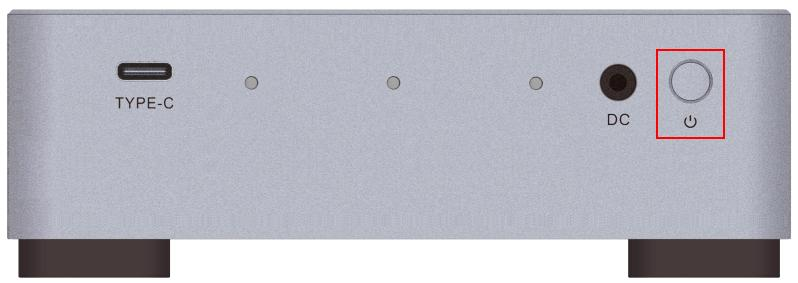
lspci | grep ASMedia
06:00.0 PCI bridge: ASMedia Technology Inc. Device 2464
07:00.0 PCI bridge: ASMedia Technology Inc. Device 2464
lspci | grep Huawei
注意:如果先启动Ubuntu电脑,再打开OPi AI Studio Pro的电源会导致电脑无法正常识别到OPi AI Studio Pro的PCIe设备。08:00.0 Processing accelerators: Huawei Technologies Co., Ltd. Device d500 (rev 23)
sudo apt update
sudo apt install -y  dkms net-tools gcc g++ make cmake pigz pciutils vim dos2unix unrar python3 python3-pip git-lfs git curl wget
echo "alias python=python3" >> ~/.bashrc
pip config set global.index-url https://mirrors.tuna.tsinghua.edu.cn/pypi/web/simple
pip install --upgrade pip
# 设置全局用户名
git config --global user.name "你的姓名"

# 设置全局邮箱
git config --global user.email "你的邮箱"
打开"Git Bash",输入如下命令下载repo(使用如下命令前请确保python3已下载),
mkdir -p ~/tools/bin
curl -L https://mirrors.tuna.tsinghua.edu.cn/git/git-repo -o ~/tools/bin/repo
chmod +x ~/tools/bin/repo
pip3 install requests
echo "export REPO_PATH=~/tools/bin" >> ~/.bashrc
echo "export PATH=\$REPO_PATH:\$PATH"  >> ~/.bashrc
echo "export REPO_URL='https://mirrors.tuna.tsinghua.edu.cn/git/git-repo'" >> ~/.bashrc
source ~/.bashrc
代码拉取
新建一个目录,名字自己命名
mkdir -p ~/origange #名字可改成自己的,也可以直接用该名字
执行如下命令拉取代码
# http下载
cd ~/origange
yes | repo init -u https://gitee.com/li_orangepi/user.git
repo sync -c -j20
repo forall -c 'git lfs pull'
# ssh下载
cd ~/origange
yes | repo init -u git@gitee.com:li_orangepi/user.git
repo sync -c -j20
repo forall -c 'git lfs pull'
一键安装环境
进入origange目录(自己新建的那个目录),并运行安装脚本
cd ~/origange
sudo ./setup/build.sh
cd ~/origange
sudo rm -rf software
sudo ./setup/build.sh
执行完该步骤会拉取与下载驱动和基础软件包,并自动安装与更新,若安装完之后,或在安装出现错误,请查看官方文档:https://gitee.com/li_orangepi/doc
若安装过程中没有出现错误,重启设备加载驱动
reboot