` element:
```
```
[See usage](https://github.com/async-labs/builderbook/blob/49116676e0894fcf00c33d208a284359b30f12bb/pages/_document.js#L51)
## Deploy to Heroku
In this section, we will learn how to deploy our app to [Heroku cloud](https://www.heroku.com/home). We will deploy our React-Next-Express app to lightweight Heroku container called [dyno](https://www.heroku.com/dynos).
Instructions are for app located at `/book/8-end`.
Adjust route if you are deploying app from the root of this public repo.
We will discuss the following topics in this section:
1. installing Heroku on Linux-based OS
2. creating app on Heroku dashboard
3. preparing app for deployment
4. configuring env variables
5. deploying app
6. checking logs
7. adding custom domain
Let's go step by step.
1. Install Heroku CLI (command-line interface) on your OS. Follow the [official guide](https://devcenter.heroku.com/articles/heroku-cli). In this book we provide instructions for Linux-based systems, in particular, a Ubuntu OS. For Ubuntu OS, run in your terminal:
sudo snap install --classic heroku
To confirm a successful installation, run:
heroku --version
As example, my output that confirms successful installation, looks like:
heroku/7.22.7 linux-x64 node-v11.10.1
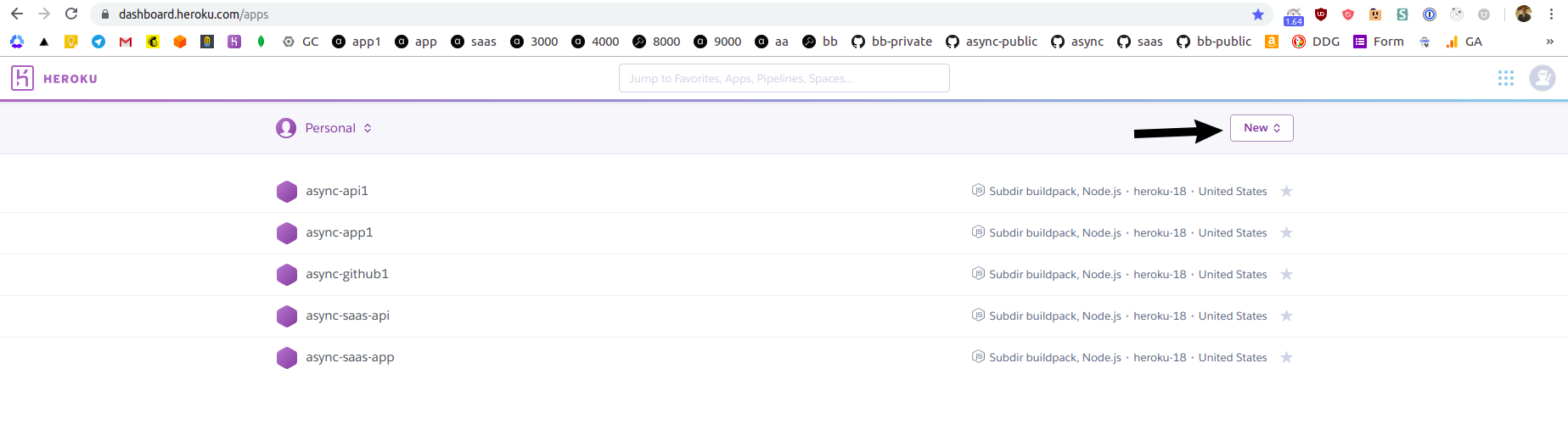
2. [Sign up](https://signup.heroku.com/) for Heroku, go to your Heroku dashboard and click purple New button on the right:
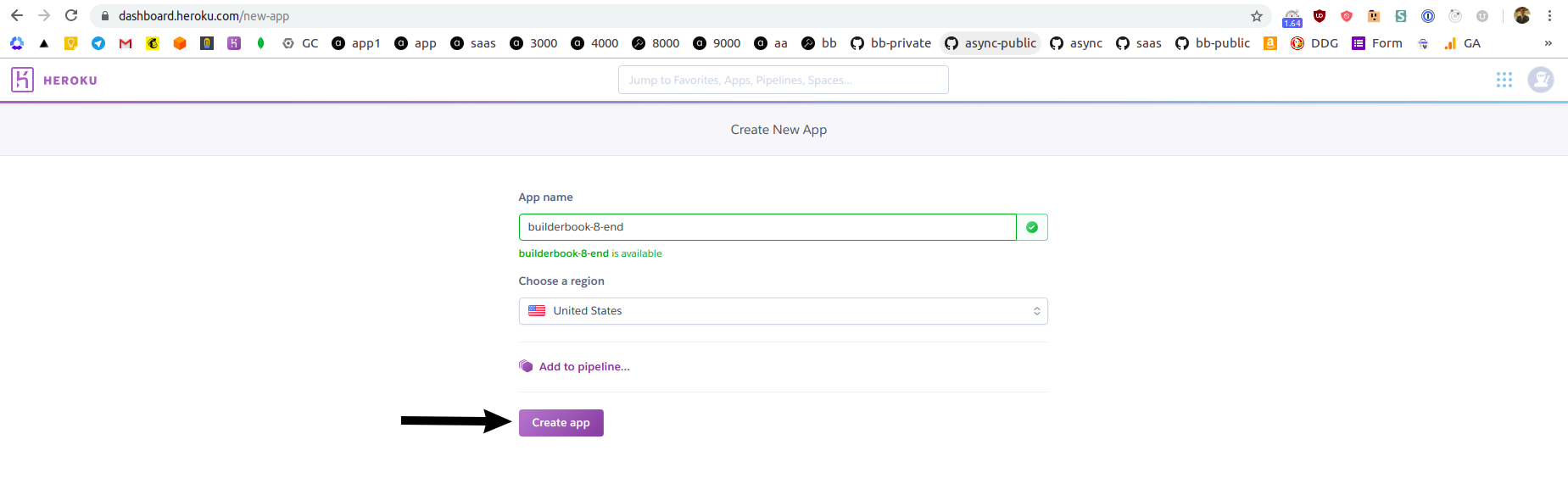
On the next screen, give a name to your app and select a region. Click purple Create app button at the bottom:
You will be redirected to `Deploy` tab of your newly created Heroku app:
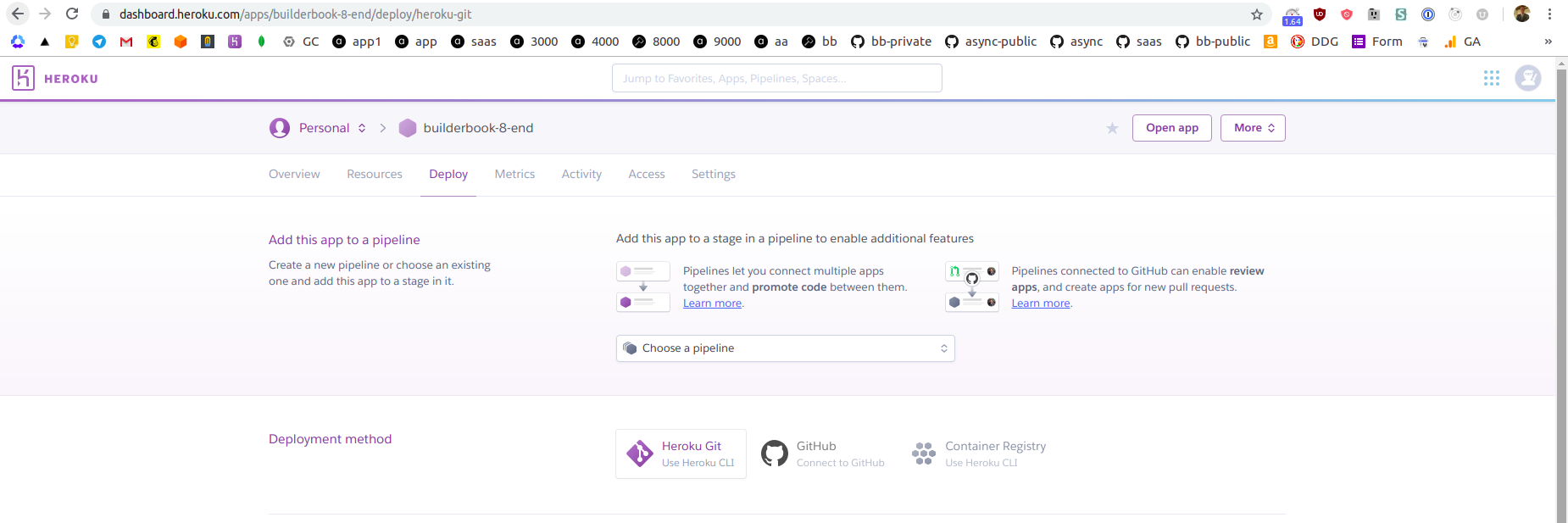
3. As you can see from the above screenshot, you have two options. You can deploy the app directly from your local machine using Heroku CLI or directly from GitHub.
In this tutorial, we will deploy a `async-labs/builderbook/book/8-end` app from our public [async-labs/builderbook](https://github.com/async-labs/builderbook) repo hosted on GitHub. Deploying from a private repo will be a similar process.
Deploying from GitHub has a few advantages. Heroku uses git to track changes in a codebase. It's possible to deploy app from the local machine using Heroku CLI, however you have to create a [Git repo](https://git-scm.com/book/en/v2/Git-Basics-Getting-a-Git-Repository) for `async-labs/builderbook/book/8-end` with `package.json` file at the root level. A first advantage is that we can deploy from a non-root folder using GitHub instead of Heroku CLI.
A second advantage is automation, later on you can create a branch that automatically deploy every new commit to Heroku. For example, we have a [deploy branch](https://github.com/async-labs/saas/tree/deploy) for our demo for [SaaS boilerplate](https://github.com/async-labs/saas/). When we commit to `master` branch - there is no new deployment, when we commit to `deploy` branch - new change is automatically deployed to Heroku app.
Let's set up deploying from GitHub. On `Deploy` tab of your Heroku app at Heroku dashboard, click Connect to GitHub, then search for your repo, then click Connect next to the name of the proper repo:
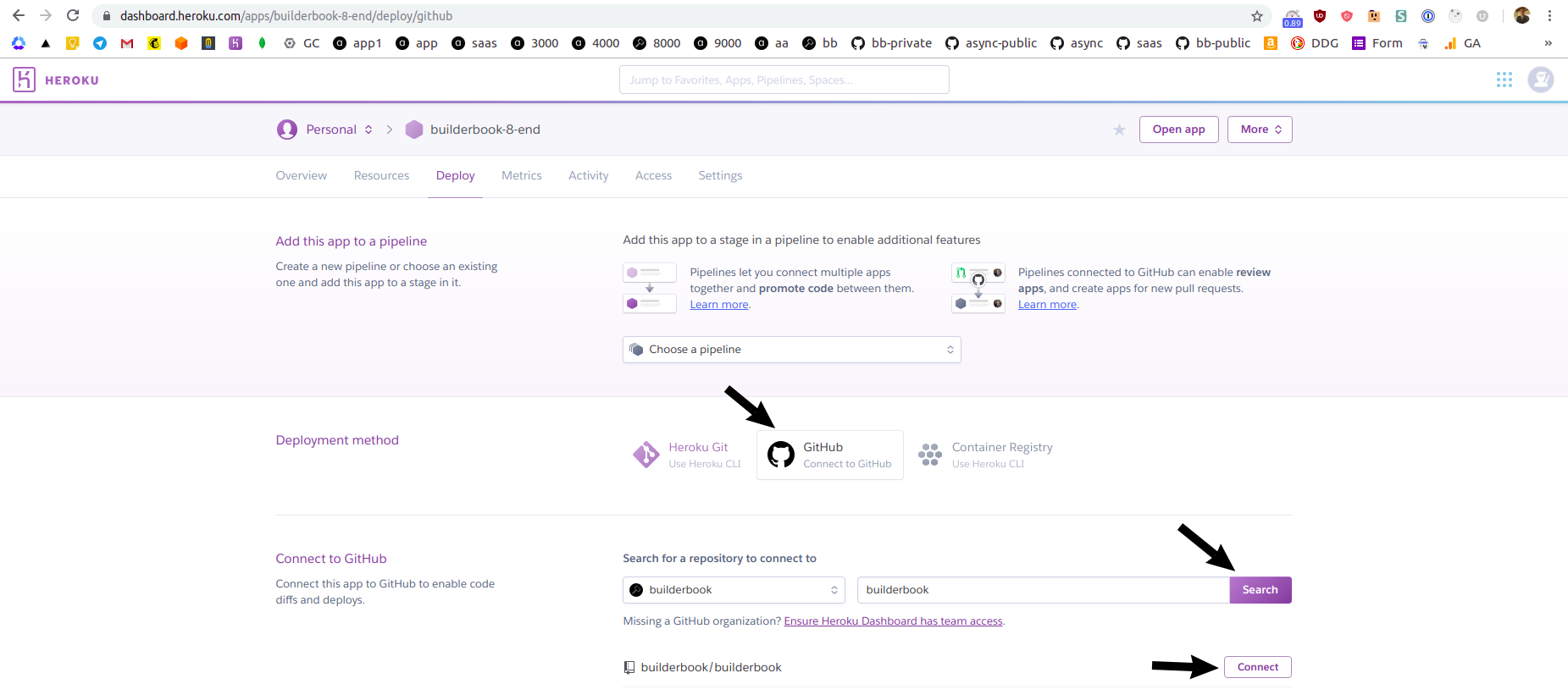
If successful, you will see green text `Connected` and be offered to select a branch and deploy app automatically or manually. Automatic deployment will deploy every new commit, manual deployment requires you to manually click on Deploy Branch button. For simplicity, we will deploy manually from `master` branch of our `async-labs/builderbook` repo.
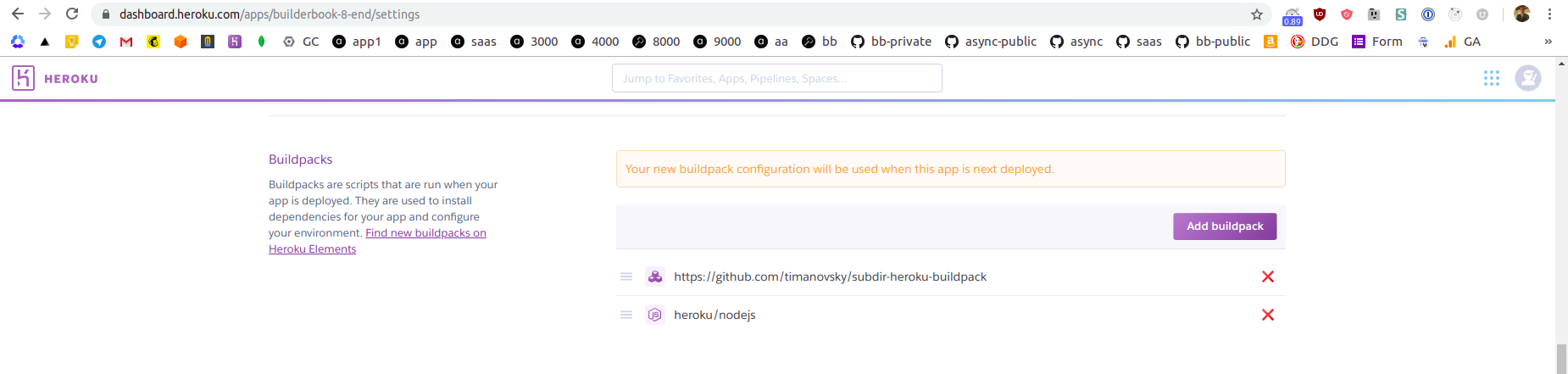
Before we perform a manual deployment via GitHub, we need Heroku to run some additional code while app is being deploying. Firstly, we need to tell Heroku that `8-end` app in the `async-labs/builderbook` repo is not at the root level, it's actually nested at `/book/8-end`. Secondly, Heroku needs to know that our app is Node.js app so Heroku finds `package.json` file, properly installs dependencies and runs proper scripts (such as `build` and `start` scripts from `package.json`). To achieve this, we need to add so called `buildpacks` to our Heroku app. Click `Settings` tab, scroll to `Buildpacks` section and click purple Add buildpack button:

Add two buildpacks, first is `https://github.com/timanovsky/subdir-heroku-buildpack` and second is `heroku/nodejs`:
Next, scroll up while on `Settings` tab and click purple Reveal Config Vars button, create a new environmental variable `PROJECT_PATH` with value `book/8-end`:
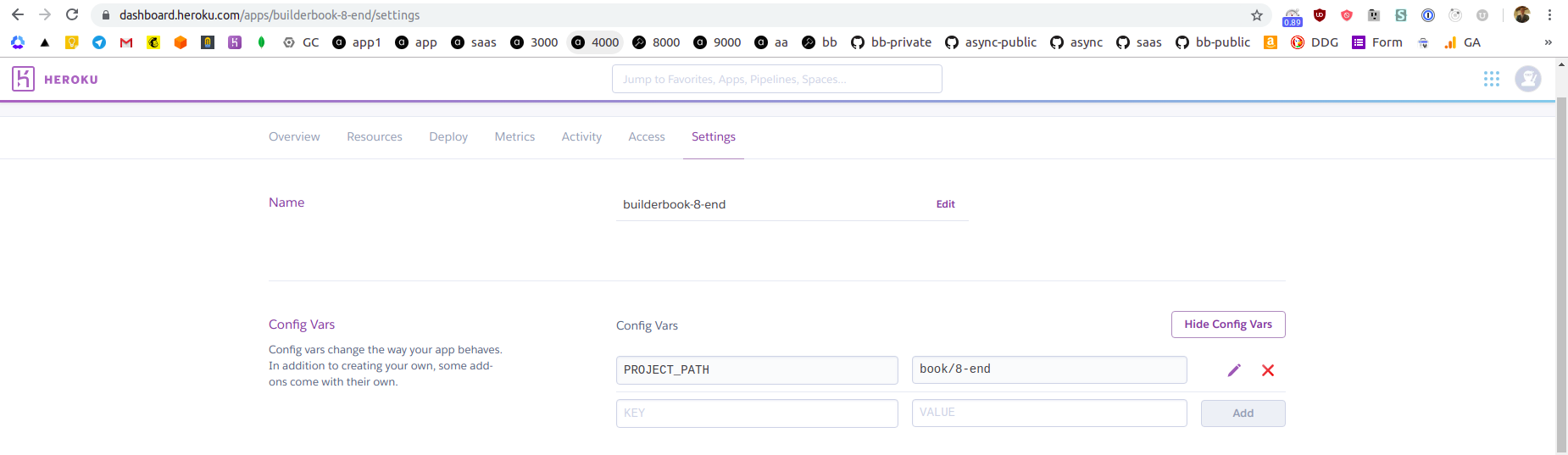
The above variable will be used by the first buildpack `subdir-heroku-buildpack` to deploy app from repo's subdirectory.
4. If we deploy app at this point, our app will deploy with errors since we did not add environmental variables. Similar to how you added `PROJECT_PATH` variable, add all environmental variables from `book/8-end/.env` file to your Heroku app. Remember to add the rest of env variables for all features to work, including signup event.
5. While on `Settings` tab, scroll to `Domains and certificates` section and note your app's URL. My app's URL is: https://builderbook-8-end.herokuapp.com
Let's deploy, go to `Deploy` tab, scroll to `Manual deploy` section and click Deploy branch button.
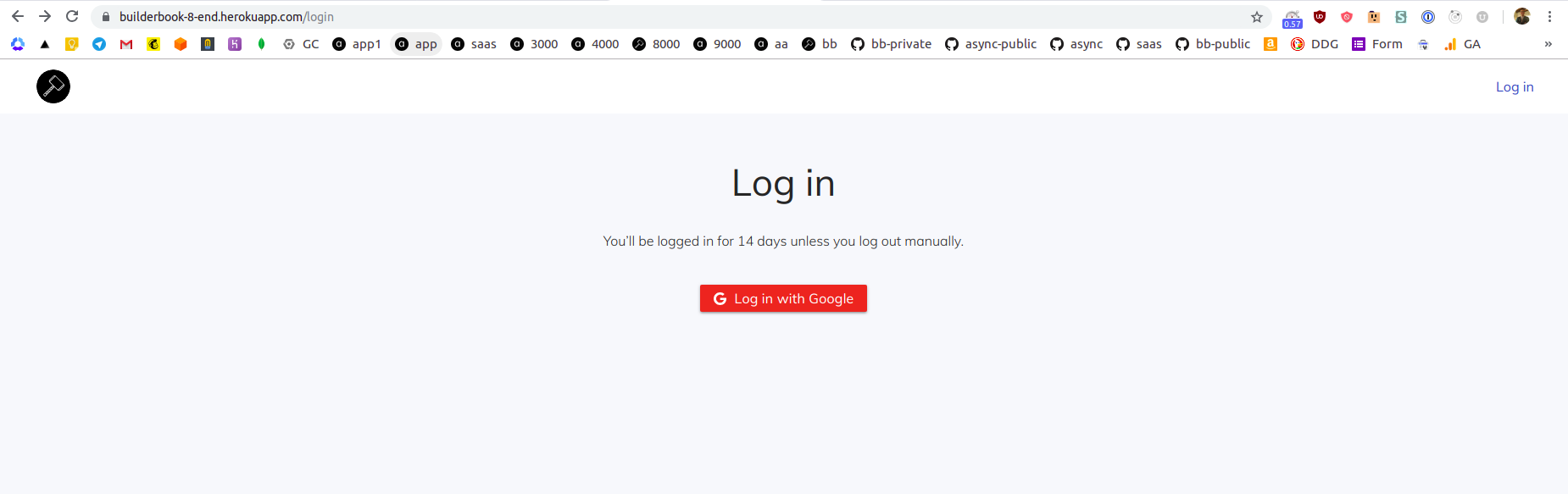
After deployment process is complete , navigate to your app's URL:
6. Server logs are not available on Heroku dashboard. To see logs, you have to use Heroku CLI.
In your terminal, run:
heroku login
Follow instructions to log in to Heroku CLI.
After successful login, terminal will print:
Logged in as email@domain.com
Where `email@domain.com` is an email address that you used to create your Heroku account.
To see logs, in your terminal run:
heroku logs --app builderbook-8-end --tail
In your terminal, you will see your most recent logs and be able to see a real-time logs.
You can output certain number of lines (N) for retrieved logs by adding `--num N` to the `heroku logs` command.
You can print only app's logs by adding `--source app` or system's logs by adding `--source heroku`.
7. Time to add a custom domain. The Heroku app that we created is deployed on `free dyno`. Free dyno plan does not let you to add a custom domain to your app. To add custom domain, go to `Resources` tab and click purple Change Dyno Type button:
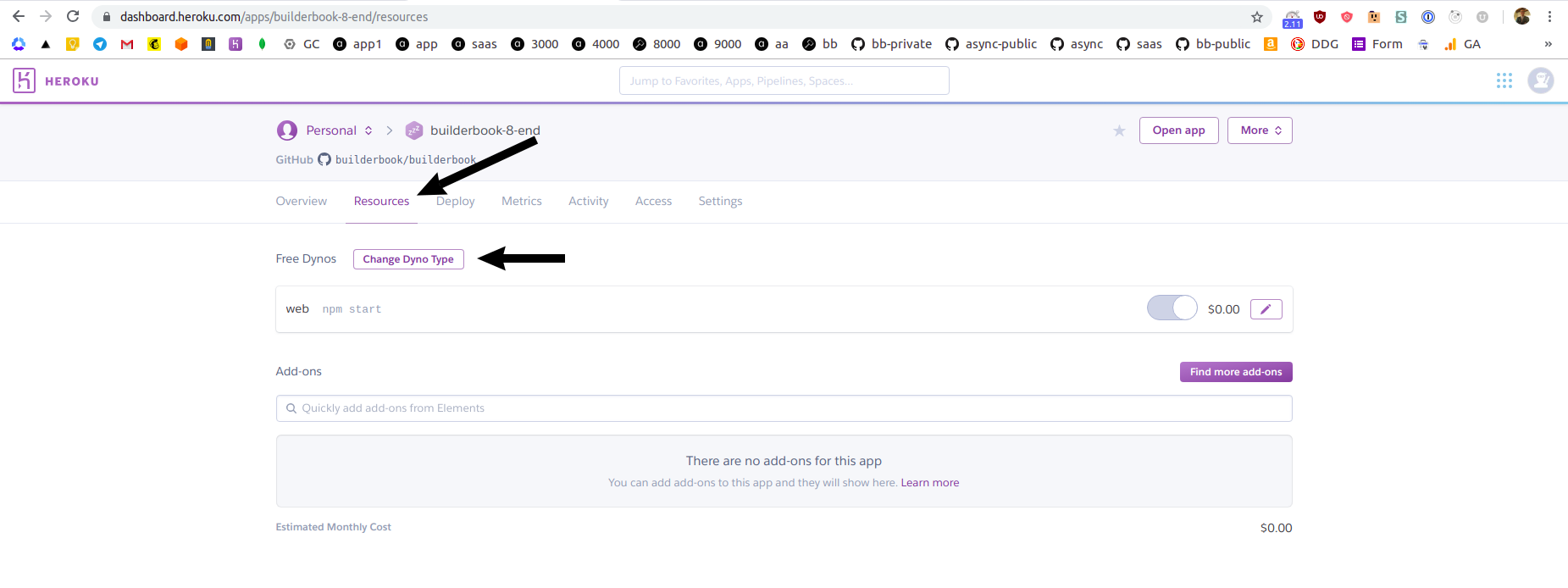
Select a `Hobby` plan and click Save button.
Navigate to `Settings` tab and scroll to the `Domains and certificates` and click purple Add domain button:
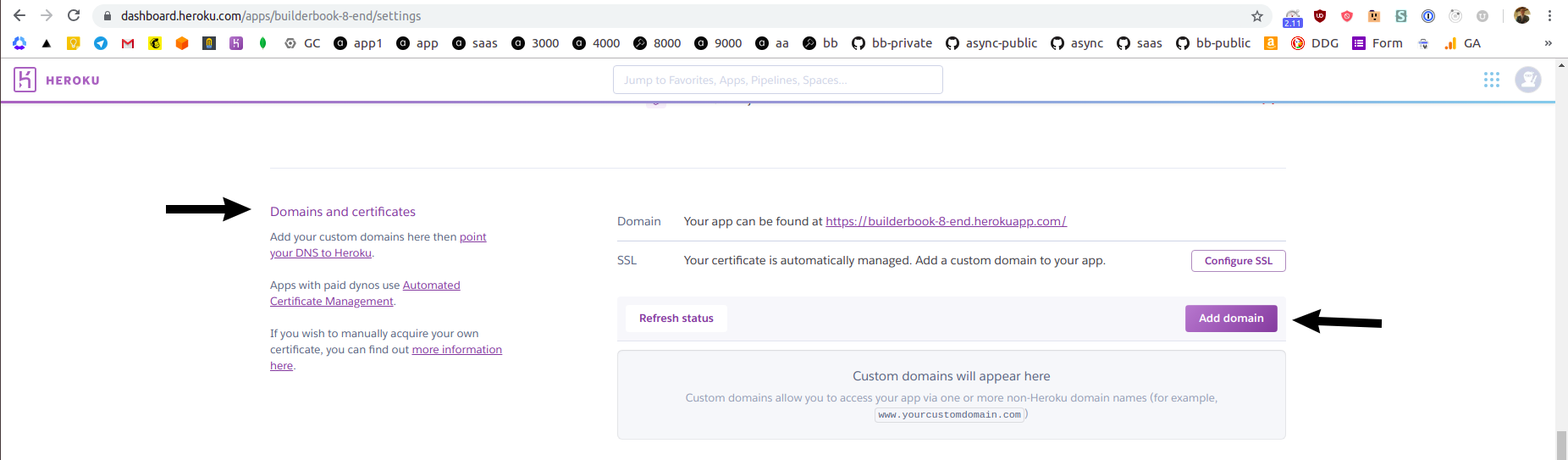
Type your custom domain name, I added `heroku.builderbook.org` as a custom domain, click Save changes button.
Heroku will display you a value for CNAME record that you have to create for your custom domain. For me, custom domain is `heroku.builderbook.org` and I manage DNS records at Now by Zeit.
After you create a CNAME, ACM status on Heroku's dashboard will change to `Ok`:
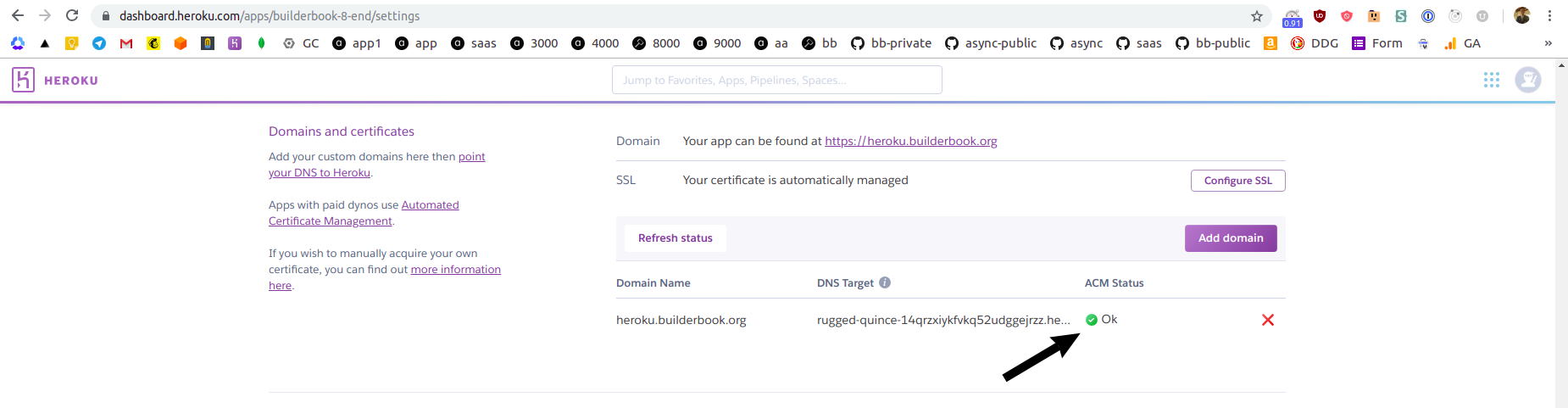
It's important that you remember to manually add your custom domain to the settings of your Google OAuth app (Chapter 3) and GitHub OAuth app (Chapter 6). If you forget to do it, you will see errors when you try to log in to your app or when you try to connect GitHub to your app.
## Scaling
You may want to consider splitting single Next/Express server into two servers:
- Next server for serving pages, server-side caching, sitemap and robots
- Express server for internal and external APIs
Here is an example of a web application with split servers:
https://github.com/async-labs/saas
Splitting servers will get you:
- faster page loads since Next rendering does not block internal and external APIs,
- faster code reload times during development,
- faster deployment and more flexible scaling of individual apps.
## Docker
- Install Docker and Docker Compose
- Modify `docker-compose-dev.yml` file
- If using Ubuntu, follow these steps: https://stackoverflow.com/questions/38775954/sudo-docker-compose-command-not-found
- Start app with `docker-compose -f docker-compose-dev.yml up`
## Screenshots
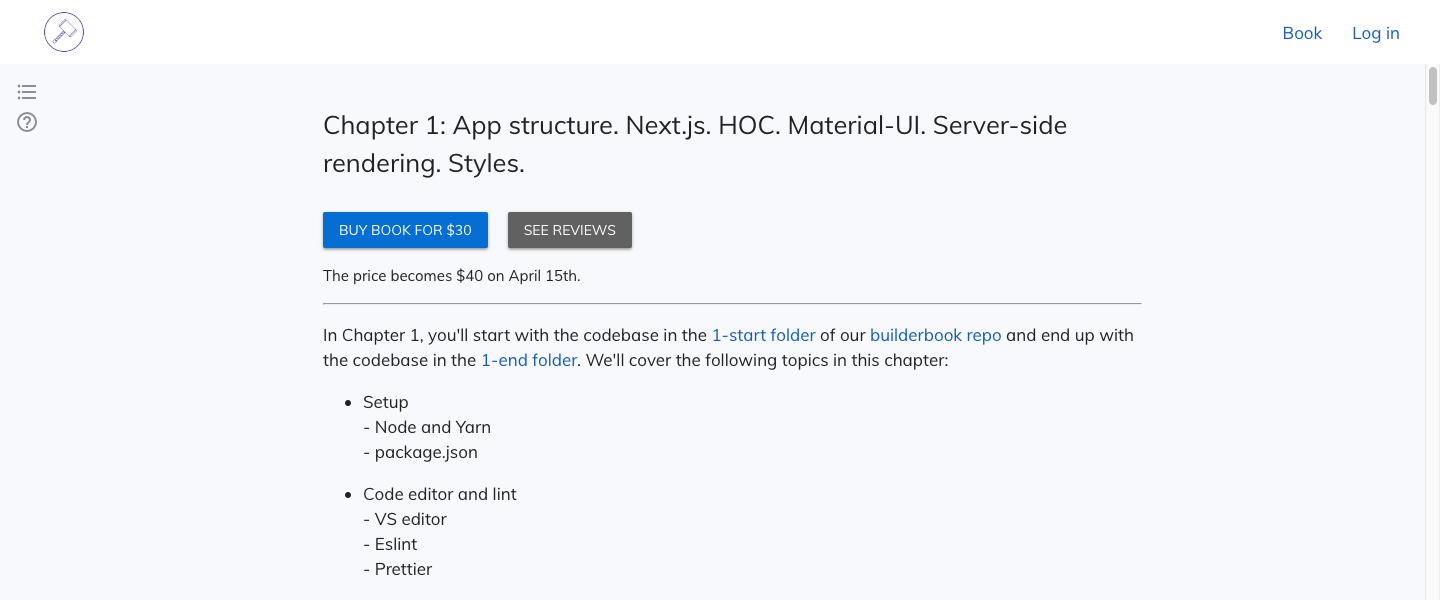
Chapter excerpt with Buy Button for Public/Guest visitor:
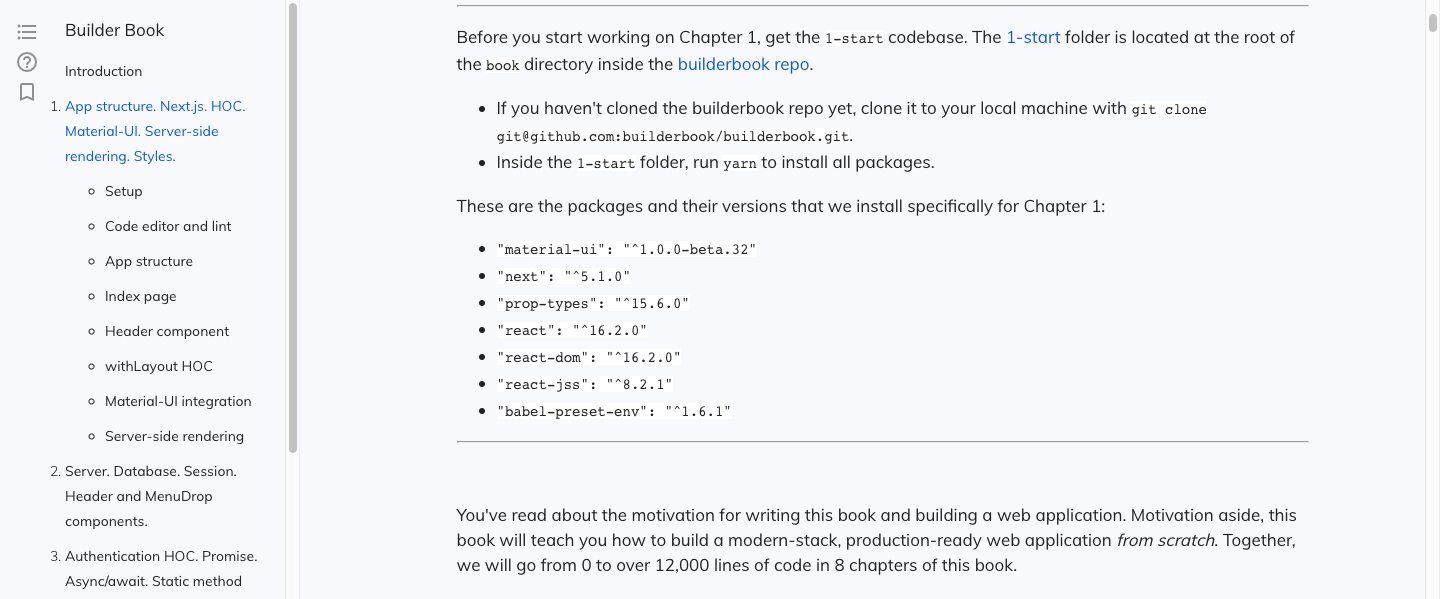
Chapter content and Table of Contents for book Customer:
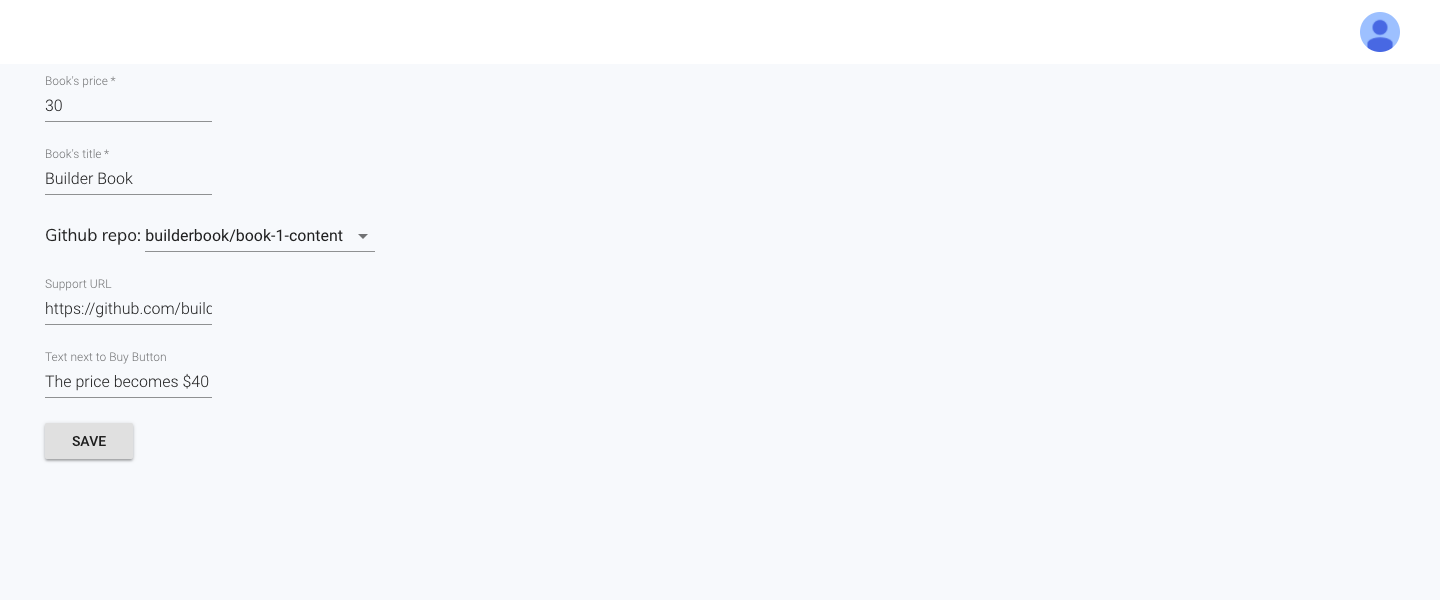
Add-book/Edit-book page for Admin user:
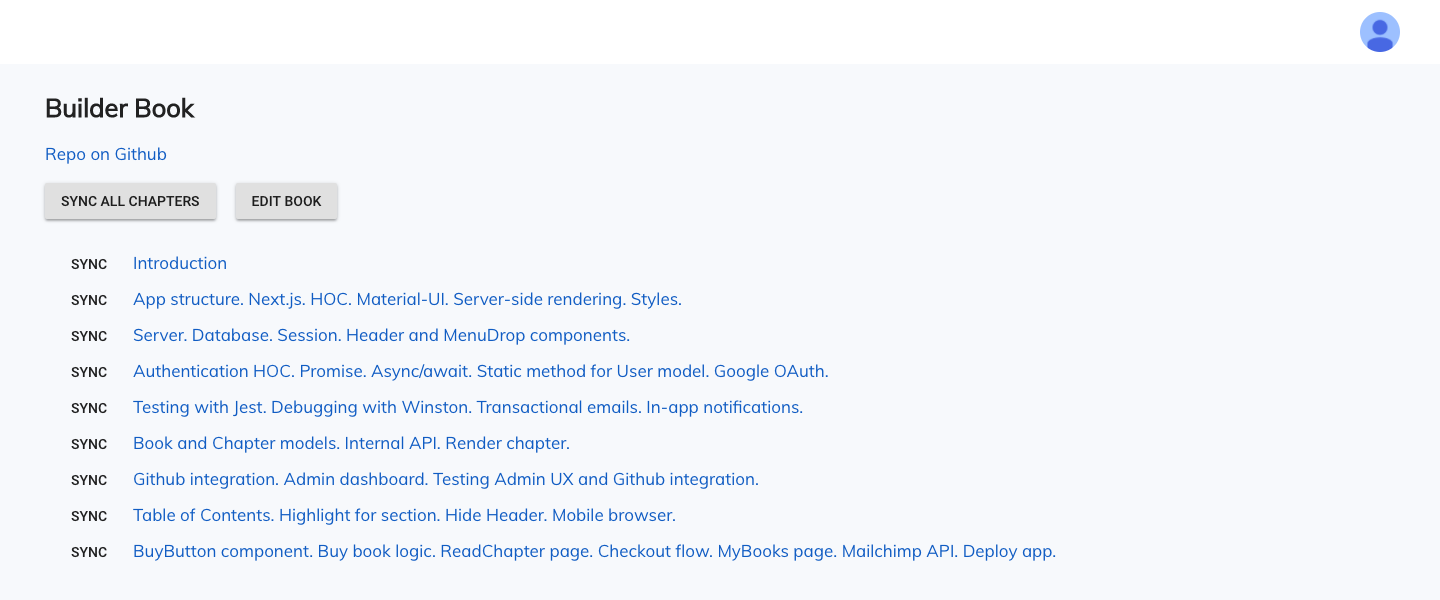
Book-detail page for Admin user:
## Built with
#### Core stack
- [React](https://github.com/facebook/react)
- [Material-UI](https://github.com/mui-org/material-ui)
- [Next](https://github.com/zeit/next.js)
- [Express](https://github.com/expressjs/express)
- [Mongoose](https://github.com/Automattic/mongoose)
- [MongoDB](https://github.com/mongodb/mongo)
#### Third party APIs
- Google OAuth
- Github
- AWS SES
- Stripe
- MailChimp
Check out [package.json](https://github.com/async-labs/builderbook/builderbook/blob/master/package.json).
## Contributing
We welcome suggestions and bug reports via issues and and pull requests.
By participating in this project, you are expected to uphold Builder Book's [Code of Conduct](https://github.com/async-labs/builderbook/blob/master/CODE-OF-CONDUCT.md).
Want to support this project? Consider buying our [books](https://builderbook.org), which teach you how to build web apps from scratch. Also check out our open source [SaaS boilerplate](https://github.com/async-labs/saas).
## Team
- [Kelly Burke](https://github.com/klyburke)
- [Timur Zhiyentayev](https://github.com/tima101)
You can contact us at team@builderbook.org
If you are interested in working with us, check out [Async Labs](https://async-labs.com/).
## License
All code in this repository is provided under the [MIT License](https://github.com/async-labs/builderbook/blob/master/LICENSE.md).
## Project structure
```
.
├── .vscode
│ ├── extensions.json
│ ├── settings.json
├── book
├── builderbook
│ ├── .elasticbeanstalk
│ │ ├── config.yml
│ ├── components
│ │ ├── admin
│ │ │ ├── EditBook.jsx
│ │ ├── customer
│ │ │ ├── BuyButton.jsx
│ │ ├── Header.jsx
│ │ ├── MenuWithAvatar.jsx
│ │ ├── Notifier.jsx
│ │ ├── SharedStyles.js
├── lib
│ ├── api
│ │ ├── admin.js
│ │ ├── customer.js
│ │ ├── getRootURL.js
│ │ ├── public.js
│ │ ├── sendRequest.js
│ ├── notify.js
│ ├── theme.js
│ ├── withAuth.jsx
├── pages
│ ├── admin
│ │ ├── add-book.jsx
│ │ ├── book-detail.jsx
│ │ ├── edit-book.jsx
│ │ ├── index.jsx
│ ├── customer
│ │ ├── my-books.jsx
│ ├── public
│ │ ├── login.jsx
│ │ ├── read-chapter.jsx
│ ├── _app.jsx
│ ├── _document.jsx
│ ├── index.jsx
├── public
│ ├── robots.txt
├── server
│ ├── api
│ │ ├── admin.js
│ │ ├── customer.js
│ │ ├── index.js
│ │ ├── public.js
│ ├── models
│ │ ├── Book.js
│ │ ├── Chapter.js
│ │ ├── EmailTemplate.js
│ │ ├── Purchase.js
│ │ ├── User.js
│ ├── utils
│ │ ├──slugify.js
│ ├── app.js
│ ├── aws.js
│ ├── github.js
│ ├── google.js
│ ├── logger.js
│ ├── mailchimp.js
│ ├── routesWithSlug.js
│ ├── sitemapAndRobots.js
│ ├── stripe.js
├── test/server/utils
│ ├── slugify.test.js
├── .eslintrc.js
├── .gitignore
├── package.json
├── yarn.lock
```