# BluetoothKit-WebWidgetDemo
**Repository Path**: shenzhen-lfscale/bluetoothkit-webwidgetdemo
## Basic Information
- **Project Name**: BluetoothKit-WebWidgetDemo
- **Description**: 小插件对应的示例程序
- **Primary Language**: Unknown
- **License**: Not specified
- **Default Branch**: master
- **Homepage**: None
- **GVP Project**: No
## Statistics
- **Stars**: 0
- **Forks**: 0
- **Created**: 2023-07-17
- **Last Updated**: 2026-03-07
## Categories & Tags
**Categories**: Uncategorized
**Tags**: None
## README
# 乐福蓝牙秤
## 设备接入指南
### 介绍
本文档提供了小程序设备接入的指导,以确保秤设备能够成功连接到程序并正常工作。
### 流程图
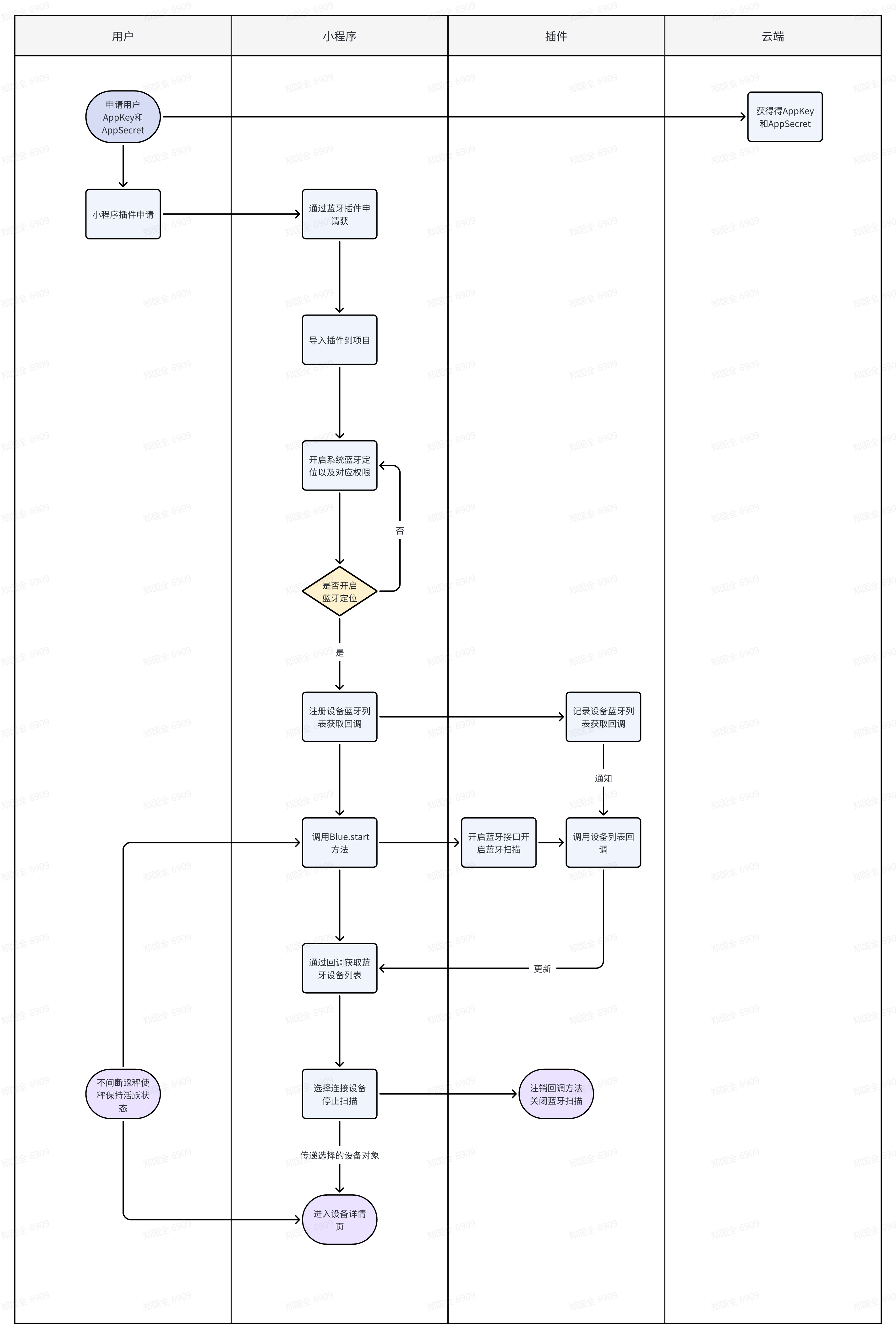
#### 通过设备列表获取设备信息
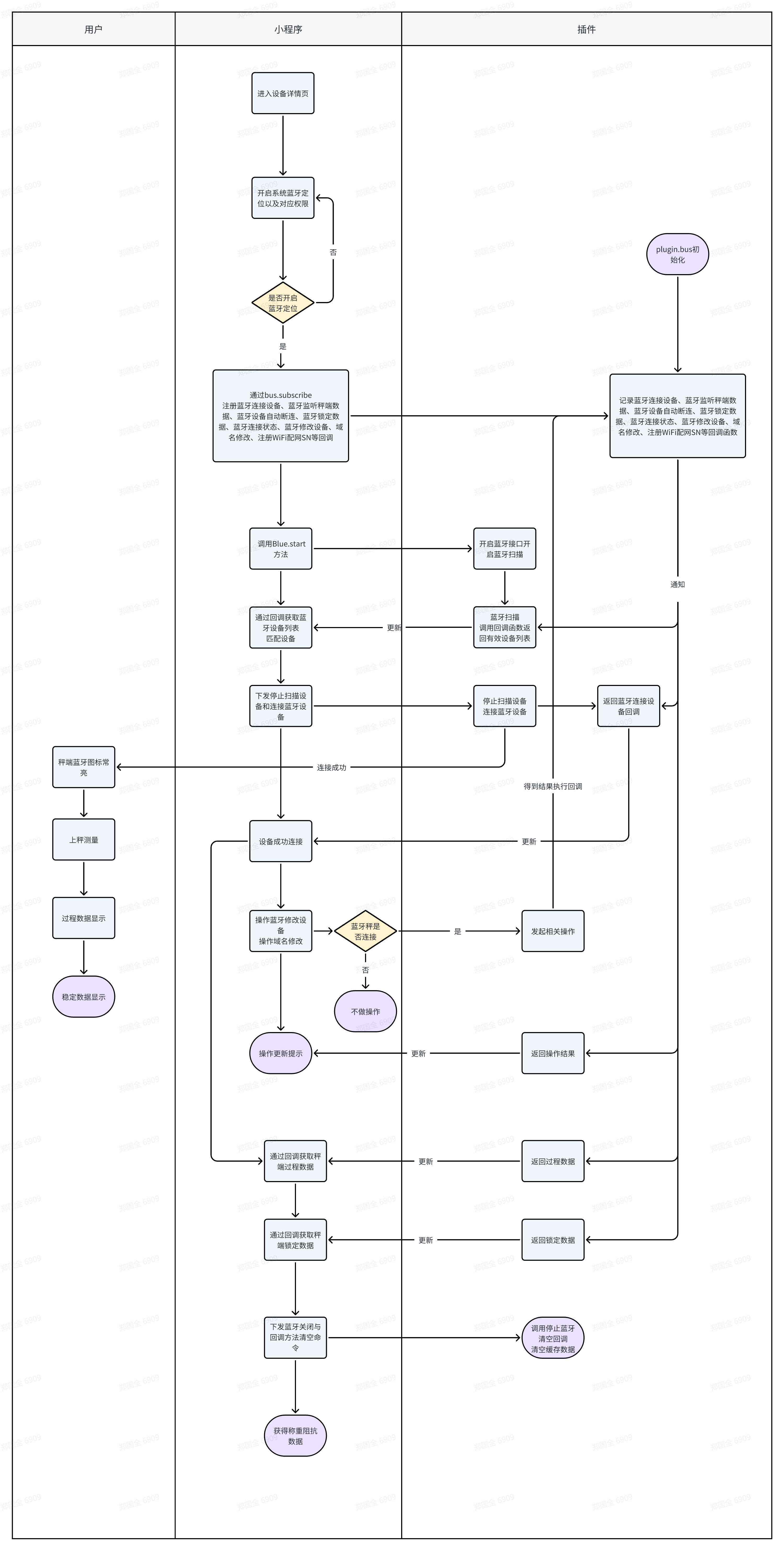
#### 操作测量流程
#### 数据解析

### 准备工作
在开始设备接入之前,请确保您已经完成以下准备工作
确认设备已经按照制造商的说明正确组装和连接。
确保设备所需的供电已经连接,并处于正常工作状态。
准备好所需的网络连接信息,如Wi-Fi名称和密码。
申请蓝牙插件和使用身体数据解析接口申请与使用步骤如下:
#### 申请与使用步骤
1. 申请蓝牙插件:请访问蓝牙秤插件申请地址 [https://mp.weixin.qq.com/wxopen/plugindevdoc?appid=wx0ffb48417ce6345c](https://mp.weixin.qq.com/wxopen/plugindevdoc?appid=wx0ffb48417ce6345c),在该页面进行申请。
2. 申请身体数据解析AppId 和 AppSecret:请访问身体数据解析申请地址 [https://uniquehealth.lefuenergy.com/unique-open-web/index.html](https://uniquehealth.lefuenergy.com/unique-open-web/index.html),在该页面进行申请。
3. 申请蓝牙插件和开放官网注册账号:请访问开放官网注册页面,填写相关信息进行账号注册。
4. 生成 AppId 和 AppSecret:在注册成功后,登录开放官网,点击Appkey管理,生成你的 AppId 和 AppSecret。
5. 下载示例代码:请访问示例代码地址 [https://gitee.com/shenzhen-lfscale/bluetoothkit-webwidgetdemo.git](https://gitee.com/shenzhen-lfscale/bluetoothkit-webwidgetdemo.git),下载示例代码到本地。
6. 开发插件功能:根据你的需求,使用示例代码进行开发,将你的 AppId 和 AppSecret 配置到代码中。
以上是申请和使用蓝牙插件以及申请身体数据解析的流程。
#### 导入插件
将所申请的插件导入到你的应用程序中,确保插件可以正常使用。
### 获取设备列表
#### 注册设备蓝牙列表获取回调
在你的应用程序中注册回调函数,用于获取设备的蓝牙列表。当回调触发时,你可以获取到可用设备的列表。
#### 调用开启start方法
调用相应的方法来开启设备的蓝牙功能,以便进行蓝牙设备的连接和通信。
#### 设备蓝牙列表获取
通过设备蓝牙列表回调,获取到可用设备的蓝牙列表。这些设备通常是附近的蓝牙设备。
#### 选择蓝牙列表中需要连接的设备
根据你的需求,在蓝牙列表中选择需要连接的设备,记录选择的蓝牙对象。
### 选择连接蓝牙设备测量流程
#### 进入设备详情页
打开设备的详情页,显示设备的详细信息和配置选项。
#### 注册监听相关回调
- 注册蓝牙连接设备回调
在你的应用程序中注册回调函数,用于处理设备的蓝牙连接事件。当设备成功连接时,回调函数将被触发。
- 注册蓝牙监听秤端数据回调
注册回调函数,用于监听来自秤端的数据。当踩秤有新的数据传输时,回调函数将被触发。
- 注册蓝牙设备自动断连回调
注册回调函数,用于处理设备自动断开连接的事件。当设备断开连接时,回调函数将被触。
- 注册蓝牙锁定数据回调
注册回调函数,用于处理来自秤端的锁定数据。当秤端锁定数据可用时,回调函数将被触发。
- 注册蓝牙连接状态回调
注册回调函数,用于处理蓝牙连接状态的变化。当蓝牙连接状态发生改变时,回调函数将被触发。
- 注册蓝牙修改设备回调
注册回调函数,用于处理对设备进行修改的事件。当设备配置发生改变时,回调函数将被触发。
- 注册域名修改回调
在域名修改的接口中,添加回调函数的参数。当域名修改成功后,调用回调函数,并传递修改成功的状态。
- 注册WiFi配网SN回调
在WiFi配网SN的接口中,添加回调函数的参数。当WiFi配网SN修改成功后,调用回调函数,并传递修改成功的SN数据。
#### 踩秤
用户踩上秤盘,使秤处于活跃状态。
#### 调用开启方法
调用相应的方法,开启设备的测量功能。
#### 停止扫描
停止扫描附近的蓝牙设备,以节省电力和资源。
#### 连接蓝牙设备
根据用户选择的设备,进行蓝牙设备的连接。连接设备回调开始处理开启过程数据监听。
#### 蓝牙连接设备秤端相关配置操作
- 设备单位修改方法
秤端单位修改成功触发设备配置回调方法返回修改成功或失败状态
- 设备域名修改方法
秤端域名修改成功触发回调方法成功状态
- 设备wifi配网ssid与passwd方法
秤端wifi配网成功触发回调方法返回修改成功snData值
#### 上秤测量
在设备连接成功后,进行秤端的测量操作。
#### 秤端数据回调方法返回秤端数据显示
当秤端传输数据时,回调函数将被触发,将秤端数据显示给用户。
#### 秤端锁定数据回调方法返回秤端锁定数据显示
当秤端锁定数据可用时,回调函数将被触发,将锁定的数据显示给用户。
#### 完成测量
用户完成测量操作,准备进行数据解析和显示。
### 解析数据
#### 根据申请的AppID与Key获取请求token
#### 拿锁定数据测量值请求数据解析接口
将锁定的数据发送给数据解析接口,请求解析数据的结果。
#### 得到身体数据解析值
接收数据解析接口返回的解析结果,得到身体数据的解析值。
#### 显示测量
将解析得到的身体数据显示给用户,完成整个测量过程。
## 方法说明
### plugin.Blue
plugin.Blue 是一系列控制蓝牙设备的命令和函数的封装,可以用于在项目中连接和通信蓝牙秤设备。以下是该插件所支持的命令和函数:
**重要!插件1.0.5以上版本如无法扫描出设备 需要调用setDeviceSetting设置相应的蓝牙秤配置**
**setDeviceSetting**设置蓝牙设备搜索的设备数组列表 新名字的秤需向开发者注册设备项:
```setDeviceSetting(devicesList: array): void```
**start**开始蓝牙扫描,参数devicesName为设备名称的数组,autoFlag是否自动连接秤端 默认为是:
```start(devicesName: array, autoFlag: Boolean): void```
**stop**停止蓝牙扫描,关闭所有事件监听与关闭蓝牙秤连接,通常用于业务结束后需要调用:
```stop(): void```
**disconnect**关闭蓝牙秤连接:
```disconnect(fn: function): object```
**createBLEConnection**接受一个蓝牙秤设备对象 连接后触发`deviceConnect`回调
```createBLEConnection(device: object): object```
**stopBluetoothDevicesDiscovery**停止扫描设备回调
```stopBluetoothDevicesDiscovery(fn: function): object```
**visibleLog** 是否打印插件内部日志
```visibleLog(flag: boolean):void```
### plugin.ScaleAction
plugin.ScaleAction APP操作是蓝牙秤端的通用方法,切换蓝牙秤的单位和开启监听蓝牙秤数据
**configWifi** 蓝牙配网 - 该功能用于蓝牙WiFi秤,在给秤配置网络时使用
```
// 首先确保已经绑定了蓝牙WiFi秤 2、用户输入Wifi账号和密码 3、发起连接设备 4、plugin.bus.subscribe("snData")方法返回sn码,此时秤上的WiFi图标会先闪烁(连接路由器中),再常量(连接路由器成功并获取到sn)将sn传给Server验证秤是否已经完成注册 7、Server返回成功,则配网成功,否则配网失败
configWifi(ssid: string, password:string): void
```
**configDomain** 修改秤端服务器域名 修改后调用configWifi开始蓝牙配网
```
// 首先确保已经绑定了蓝牙WiFi秤
发起蓝牙配网是先更新秤端服务器域名 防止域名调试篡改
configDomain(domain: string): void
```
**startDataProgress**蓝牙秤端发送数据 需要在设备连接成功后即`deviceConnect`回调中使用
```
startDataProgress(): void
// 示例
plugin.bus.subscribe("deviceConnect", (res) => {
// 必须调用 不然无法获得秤端数据
plugin.ScaleAction.startDataProgress()
});
```
**fetchDeviceHistoryData**
```
fetchDeviceHistoryData(): void
// 示例
plugin.bus.subscribe("syncDeviceHistorySuccess", (res) => {
//同步历史数据成功回调
});
```
**deleteDeviceHistoryData**
```
deleteDeviceHistoryData(): void
// 示例
plugin.bus.subscribe("deleteDeviceHistoryDataSuccess", (res) => {
//删除历史数据成功回调
});
```
**syncDeviceSetting**
体重秤syncDeviceSetting 传入对象键值对
| Property | Value | Value |
| ---------------- | ------- | ------- |
| gender | 0 | 性别对应 Plugin.PPBluetoothDefine.PPDeviceGenderType|
| unit | 0 | 单位对应 Plugin.PPBluetoothDefine.PPDeviceUnit |
| isAthleteMode | false | 孕妇 |
| isPregnantMode | false | 运动员模式 |
| age | 23 | 年龄 |
| height | 123 | 身高 |
**食物秤**syncDeviceSetting 传入对象键值对
| Property | Value | Value |
| ---------------- | ------- | ------- |
| unit | 0 | 单位对应 Plugin.PPBluetoothDefine.PPDeviceUnit |
| isBuzzerGateMode | false | 开启蜂鸣 |
| isToZeroMode | false | 食物称置零 |
```
syncDeviceSetting(): object
// 体重秤示例
plugin.ScaleAction.syncDeviceSetting({
gender:0,
unit:0,
isAthleteMode:false,
isPregnantMode:false,
age:23,
height:123,
})
// 食物秤示例 食物称只能修改单一项
plugin.ScaleAction.syncDeviceSetting({
isBuzzerGateMode: true,
})
plugin.ScaleAction.syncDeviceSetting({
unit: 0,
})
plugin.ScaleAction.syncDeviceSetting({
isToZeroMode: true,
})
```
**historyData** 获取历史带历史过程数据
其中res为对象键值为
| Property | Value | 描述 |
| -------------- | ------- | ------- |
| isPlus | true | 是否是正数 |
| isOverload | false | 是否超载 |
| weight | 0 | 重量放大了100倍 |
| resistance | 0 | 阻抗 |
| isEnd | false | 本次测量是否结束 |
| isHeartRating | false | 心律是否测量中 |
| heartRate | 0 | 心律 |
| unit | 0 | 设备单位 对应Plugin.PPBluetoothDefine.PPDeviceUnit |
```
plugin.bus.subscribe("historyData", (res) => {
console.log("historyData", res);
});
```
**devicesModel** 获取设备模型设备模型可以根据Plugin.PPBluetoothDefine了解秤相关信息
```
plugin.bus.subscribe("devicesModel", (res) => {
console.log("devicesModel", res);
});
```
**devicesInfo** 获取设备内置信息
```
plugin.bus.subscribe("devicesInfo", (res) => {
console.log("devicesInfo", res);
});
```
**syncDeviceTimeSuccess** 时间同步 时间同步成功回调
```
plugin.bus.subscribe("syncDeviceTimeSuccess", (res) => {
console.log("syncDeviceTimeSuccess", res);
});
```
**syncDeviceHistorySuccess** 同步历史数据回调
```
plugin.bus.subscribe("syncDeviceHistorySuccess", (res) => {
console.log("syncDeviceHistorySuccess", res);
});
```
**deleteDeviceHistoryDataSuccess** 历史数据删除成功回调
```
plugin.bus.subscribe("deleteDeviceHistoryDataSuccess", (res) => {
console.log("deleteDeviceHistoryDataSuccess", res);
});
```
**deviceWillDisconnect** 设备将要断连回调
```
plugin.bus.subscribe("deviceWillDisconnect", (res) => {
console.log("deviceWillDisconnect", res);
});
```
### plugin.bus
plugin.bus通信蓝牙设备,用于监听蓝牙以及秤端的数据与状态,以下是该插件所支持的命令:
**connectState** 蓝牙与蓝牙秤状态监听
```
plugin.bus.subscribe("connectState", (res) => {
console.log("connectState", res);
});
```
**unitChange** 蓝牙秤单位切换状态监听
```
plugin.bus.subscribe("unitChange", (res) => {
console.log("unitChange", res);
});
```
**devicesList** 获取过滤后的附近设备列表
```
plugin.bus.subscribe("devicesList", (res) => {
console.log("devicesList", res);
});
```
**getDeviceInfo** 获取附件所有附近设备信息 自动连接autoFlag不为false时有数据
```
plugin.bus.subscribe("getDeviceInfo", (res) => {
console.log("getDeviceInfo", res);
});
```
**deviceConnect** 蓝牙秤设备成功连接后连接中状态监听
```
plugin.bus.subscribe("deviceConnect", (res) => {
plugin.ScaleAction.startDataProgress()
});
```
**progressData** 蓝牙秤端过程数据,监听不稳定体重的实时状态
其中res为对象键值为
| Property | Value | 描述 |
| -------------- | ------- | ------- |
| isPlus | true | 是否是正数 |
| isOverload | false | 是否超载 |
| weight | 0 | 重量放大了100倍 |
| resistance | 0 | 阻抗 |
| isEnd | false | 本次测量是否结束 |
| isHeartRating | false | 心律是否测量中 |
| heartRate | 0 | 心律 |
| unit | 0 | 设备单位 对应Plugin.PPBluetoothDefine.PPDeviceUnit |
**食物秤**中res为对象键值为
| Property | Value | 描述 |
| -------------- | ------- | ------- |
| isPlus | true | 是否是正数 |
| isOverload | false | 是否超载 |
| weight | 0 | 重量放大了100倍 |
| isEnd | false | 本次测量是否结束 |
| unit | 0 | 设备单位 对应Plugin.PPBluetoothDefine.PPDeviceUnit |
```
plugin.bus.subscribe("progressData", (res) => {
console.log("progressData", res);
});
```
**lockData** 蓝牙秤端完成测量锁定数据,锁定的体重和阻抗
```
plugin.bus.subscribe("lockData", (res) => {
console.log("lockData", res);
});
```
**heartRate** 蓝牙秤端锁定心率值,必须根据已有秤功能调用
```
plugin.bus.subscribe("heartRate", (res) => {
console.log("heartRate", res);
});
```
**snData** 配网成功后返回sn码 sn码用于请求验证秤是否已经完成注册
```
plugin.bus.subscribe("snData", (res) => {
console.log("snData", res);
});
```
**domainChange** 修改域名成功后返回提示
```
plugin.bus.subscribe("domainChange", (res) => {
console.log("domainChange", res);
});
```
### plugin.getDeviceSettingList
**插件1.0.5以上版本新增api**
***plugin.getDeviceSettingList*** 获取设置设备列表
```
//获取设备设置列表用于用户添加扫描设备
plugin.getDeviceSettingList({
url: baseUrl,
data: {
appKey: appInfo.appKey
},
header: {
"token": bodyToken,
"Accept-Language": wx.getStorageSync("lang") || 'zh'
}
}).then((res)=>{
if (res.data.code == 200) {
plugin.Blue.setDeviceSetting(res.data.data)
console.log("plugin==", plugin.PPBluetoothDefine)
}
})
```
***plugin.getAcLfBodyData*** 交流秤数据解析
```
// 设备device 根据plugin.Blue.getDeviceModel 获取设备类型deviceConnectType 根据相应的类型请求解析
var param = {
weightKg: 60,
impedance: 5076001,
sex: 1, 0(女) 1(男)
age: 22,
height: 170,
heartRate: 80,
token: '必传',
}
plugin.getAcLfBodyData({url:url,data:param,header:{ "token":res.data.data.token,"Accept-Language":"zh"}}).then(res => {
console.log('解析结果',res)
})
```
### plugin.getDcLfBodyData
***plugin.getDcLfBodyData*** 直流秤数据解析
```
// 设备device 根据plugin.Blue.getDeviceModel 获取设备类型deviceConnectType 根据相应的类型请求解析
var param = {
"age":23,
"heartRate":0,
"height":123,
"impedance":0,
"peopleType":0,
"sex":0,
"weightKg":66.6,
}
plugin.getDcLfBodyData({url:url,data:param,header:{ "token":res.data.data.token,"Accept-Language":"zh"}}).then(res => {
console.log('解析结果',res)
})
```
### plugin.refreshToken
***plugin.refreshToken*** 刷新token
```
// 使用refreshToken与解析数据方法结合示例
function refreshFn() {
this.refreshToken(() => {
callDcLfBodyData(param);
}, true);
}
async function refreshToken(fn, flag) {
let bodyToken = localStorage.getItem('bodyToken');
let bodyTokenTime = localStorage.getItem('bodyTokenTime');
if (!bodyToken || bodyTokenTime * 1000 < +new Date() || flag) {
let res = await plugin.refreshToken({
url: 'https://uniquehealth.lefuenergy.com',
data: {
"appSecret": "插件开发者申请",
"appKey": "插件开发者申请"
}
});
console.log("res", res);
if (res.data.code == 200) {
localStorage.setItem('bodyToken', res.data.data.token);
localStorage.setItem('bodyTokenTime', res.data.data.expireTime);
fn();
}
} else {
fn();
}
}
function handleResponse(res) {
console.log("res-=-=-|||", res.data.data);
if (res.data.code == 200) {
// 获取解析数据操作
} else if (res.data.code == 401) {
this.refreshToken(() => {
callDcLfBodyData(param);
}, true);
}
}
function handleResponseList(res) {
console.log("res-=-=-|||", res.data.data);
if (res.data.code == 200) {
// 获取解析数据操作
} else if (res.data.code == 401) {
this.refreshToken(() => {
getDeviceSettingList(param);
}, true);
}
}
function getDeviceSettingList(param){
let bodyToken = localStorage.getItem('bodyToken');
plugin.getDeviceSettingList({
url: 'https://uniquehealth.lefuenergy.com',
data: param,
header: {
"token": bodyToken,
"Accept-Language": localStorage.getItem("lang") || 'zh'
}
}).then(handleResponseList);
}
function callDcLfBodyData(param) {
let bodyToken = localStorage.getItem('bodyToken');
plugin.getDcLfBodyData({
url: 'https://uniquehealth.lefuenergy.com',
data: param,
header: {
"token": bodyToken,
"Accept-Language": localStorage.getItem("lang") || 'zh'
}
}).then(handleResponse);
}
```
## Torre协议测量
### Torre测量流程
连接设备后 必须先调用更新MTU接口 再调用开始测量接口后数据返回
```
let getActiveProtocol = null
plugin.bus.subscribe("deviceConnect", (res) => {
console.log('成功连接设备')
// 获取协议调用方法
getActiveProtocol = plugin.ScaleAction.getActiveProtocol()
// 更新MTU
getActiveProtocol.codeUpdateMTU((res) => {
console.log("codeUpdateMTU", res)
})
});
//开始测量
activeProtocol.codeStartMeasure((res) => {
console.log("res", res)
})
//监听到数据变化
plugin.bus.subscribe("progressData", (res) => {console.log(res)})
//获得测量结果
plugin.bus.subscribe("lockData", (res) => {console.log(res)})
```
### 配网流程
配网需要先调用获取wifi列表接口 返回数据后再进行配网
```
let getActiveProtocol = plugin.ScaleAction.getActiveProtocol()
activeProtocol.dataFindSurroundDevice((res) => {
console.log("wifiList", res)
activeProtocol.dataConfigNetWork({
domain: "http://domain",
ssid: 'IT32',
password: 'whs123456'
}, (res) => {
console.log("dataConfigNetWork", res)
})
})
```
开始测量
下发此指令后设备才会上报称重情况
参数:无
handler: 0设置成功 1设置失败
```
codeStartMeasure((status) => {})
```
保活指令
推荐首次连接成功后每10秒调用一次,可以保证设备不会主动断开连接
```
sendKeepAliveCode()
```
停止测量
停止设备的测量操作
参数:无
handler: 0设置成功 1设置失败
```
codeStopMeasure((status) => {})
```
获取设备单位
获取设备当前的单位信息
参数:无
```
codeFetchUnit((status) => {})
```
修改设备单位
修改设备的单位信息
参数:无
unit: 单位
0x00:单位kg
0x01:单位lb
0x02:单位斤
0x03:单位st
0x04:单位st:lb
handler:
0x00:设置成功
0x01:设置失败
```
codeChangeUnit(unit,(status) => {})
```
同步设备时间
同步设备的时间
参数:无
```
codeSyncTime((status) => {})
```
获取设备屏幕亮度
获取设备当前的屏幕亮度
```
codeFetchScreenLuminance((status)=>{})
```
设置设备屏幕亮度
设置设备的屏幕亮度
```
codeSetScreenLuminance(50,(status)=>{})
```
清除设备数据
清除设备中的不同类型的数据
参数-
cmd:
0x00:清除所有设备数据(用户信息、历史数据、配网数据、设置信息)
0x01:清除用户信息
0x02:清除历史数据
0x03:清除配网状态
0x04:清除设置信息
handler:
0x00:成功
0x01:失败
```
codeClearDeviceData("00",(status)=>{})
```
获取心率开关状态
获取设备当前的心率测量开关状态
参数:无
```
codeFetchHeartRateSwitch((status)=>{})
```
打开心率测量
打开设备的心率测量功能
参数:无
```
codeOpenHeartRateSwitch((status)=>{})
```
关闭心率测量
关闭设备的心率测量功能
参数:无
```
codeCloseHeartRateSwitch((status)=>{})
```
获取阻抗开关状态
获取设备当前的阻抗测量开关状态
参数:无
```
codeFetchImpedanceSwitch((status)=>{})
```
打开阻抗测量
打开设备的阻抗测量功能
参数:无
```
codeOpenImpedanceSwitch((status)=>{})
```
关闭阻抗测量
关闭设备的阻抗测量功能
参数:无
```
codeCloseImpedanceSwitch((status)=>{})
```
获取设备配网状态
获取设备当前的配网状态
参数:无
```
codeFetchWifiConfig((status)=>{})
```
退出配网模式
退出设备的配网模式
参数:无
```
dataExitWifiConfig((status)=>{})
```
获取设备当前配置热点的ssid
获取设备当前配置的热点SSID名称
参数:无
handler: ssid名称
```
dataFetchConfigNetworkSSID((status)=>{})
```
设置设备绑定状态
设置设备的绑定状态
参数:无
handler:
0:设置成功
1:设置失败
```
codeSetBindingState((status)=>{})
```
设置设备未绑定状态
设置设备的未绑定状态
参数:无
handler:
0:设置成功
1:设置失败
```
codeSetUnbindingState((status)=>{})
```
获取设备绑定状态
获取设备当前的绑定状态
参数:无
```
codeFetchBindingState((status)=>{})
```
开启抱婴模式
开启设备的抱婴模式
参数:
step: 第几次上称(0/1)
weight: 上次上称时的重量(step为0时传0)
handler:
0:设置成功
1:设置失败
```
codeEnableBabyModel(0,0,fn)
```
退出抱婴模式
退出设备的抱婴模式
参数:无
handler:
0:设置成功
1:设置失败
```
codeExitBabyModel((status)=>{})
```
更新MTU
更新设备的MTU(最大传输单元)
参数:无
handler:
0:设置成功
1:设置失败
```
codeUpdateMTU((status)=>{})
```
发现周围的可连接热点
搜索周围的可连接WiFi热点
参数:无
handler: 返回结果,包含热点名称和强度的数组对象
```
dataFindSurroundDevice((list)=>{})
```
获取WIFI MAC地址
获取设备的WiFi MAC地址
参数:无
handler: WiFi MAC地址,示例:MAC 地址:01:02:03:04:05:06(当MAC地址为00:00:00:00:00:00时表示获取不到)
```
codeFetchWifiMac((mac)=>{})
```
通过WIFI进行OTA升级
使用WiFi进行设备的OTA(空中固件升级)
参数:无
handler: 进度和失败状态
```
codeOtaUpdate((status)=>{})
```
获取设备端用户列表
获取设备端的用户ID列表
参数:无
handler: 返回设备端所有用户的userId
```
dataFetchUserID((list)=>{})
```
删除用户
删除设备端的用户信息
参数:无
userModel: 单个用户信息,包含userId和memberId
handler:
0:设置成功
1:设置失败
```
dataDeleteUser({userID: "15820440620", memberID: "1885639"},(status)=>{})
```
获取某个用户下所有成员的历史记录
获取某个用户下所有成员的历史记录
参数:无
userModel: 用户对象,userId为必传项
handler: 历史数据结果
```
dataFetchHistoryData({userID: "15820440620"},(status)=>{})
dataHistoricalDataStatusReport((res) => {console.log("历史数据", res)})
```
选中测量用户
用于测量过程中指定测量用户,指定后不需要在设备端进行选择
参数-userModel: 单个用户信息,包含userId和memberId
handler:
0:设置成功
1:设置失败
```
dataSelectUser({userID: "15820440620", memberID: "1885639", }, (status) => {})
```
同步单个用户给设备
将单个用户信息同步给设备,如果设备中已存在该用户,则会更新用户信息;如果不存在,则会插入。
参数-infos: 单个用户信息,包含各个属性的值(参考代码注释)
handler:
0:设置成功
1:设置失败
```
dataSyncUserInfo({
userID: "15820440621",
memberID: "1885629",
age: "25",
gender: 0,
height: "158",
isAthleteMode: 0,
currentWeight: "55",
deviceHeaderIndex: 0,
targetWeight: "54",
idealWeight: "52.8",
recentData: [{
weightKg: 59.00,
timeStamp: 1677046795028
},
{
weightKg: 58.79,
timeStamp: 1692264965631
},
{
weightKg: 52.20,
timeStamp: 1693894960948
},
{
weightKg: 46.50,
timeStamp: 1694051103700
},
{
weightKg: 61.95,
timeStamp: 1694159727308
},
{
weightKg: 61.59,
timeStamp: 1694232070904
},
{
weightKg: 62.35,
timeStamp: 1694425016834
},
],
userName: "名字",
},(status)=>{})
```
配置热点
配置设备连接的WiFi热点信息
参数-model: 包含用于连接热点的信息(domain, ssid, password)
handler: 配网过程中的状态和错误码
```
dataConfigNetWork({domain:"domain", ssid:"ssid", password:"password"},(status)=>{})
```
## 常量与枚举值
### plugin.PPBluetoothDefine
以下是对给定的枚举类型介绍:
### PPDeviceConnectType (设备连接类型)
- `PPDeviceConnectTypeUnknow` (未知)
- `PPDeviceConnectTypeBleAdv` (蓝牙广播秤)
- `PPDeviceConnectTypeBleConnect` (蓝牙连接秤)
### PPDeviceType (设备类型)
- `PPDeviceTypeUnknow` (未知)
- `PPDeviceTypeCF` (体脂秤)
- `PPDeviceTypeCE` (体重秤)
- `PPDeviceTypeCB` (婴儿秤)
- `PPDeviceTypeCA` (厨房秤)
### PPDeviceProtocolType (设备蓝牙协议版本)
- `PPDeviceProtocolTypeUnknow` (未知)
- `PPDeviceProtocolTypeV2` (2.x版本)
- `PPDeviceProtocolTypeV3` (3.x版本)
- `PPDeviceProtocolTypeTorre` (torre版本)
### PPDeviceCalcuteType (测脂计算方式)
- `PPDeviceCalcuteTypeUnknow` (未知)
- `PPDeviceCalcuteTypeInScale` (秤端计算)
- `PPDeviceCalcuteTypeDirect` (直流算法)
- `PPDeviceCalcuteTypeAlternate` (交流算法)
- `PPDeviceCalcuteTypeAlternate8` (8电极交流算法)
- `PPDeviceCalcuteTypeAlternateNormal` (默认计算库直接用合泰返回的体脂率)
- `PPDeviceCalcuteTypeNeedNot` (无需计算)
### PPDevicePowerType (设备供电方式)
- `PPDevicePowerTypeUnknow` (未知)
- `PPDevicePowerTypeBattery` (电池)
- `PPDevicePowerTypeSolar` (太阳能)
- `PPDevicePowerTypeCharge` (充电)
### PPDeviceFuncType (设备功能类型)
- `PPDeviceFuncTypeWeight` (称重)
- `PPDeviceFuncTypeFat` (测脂)
- `PPDeviceFuncTypeHeartRate` (心律)
- `PPDeviceFuncTypeHistory` (历史)
- `PPDeviceFuncTypeSafe` (孕妇)
- `PPDeviceFuncTypeBMDJ` (闭目单脚)
- `PPDeviceFuncTypeBaby` (抱婴模式)
- `PPDeviceFuncTypeWifi` (wifi配网)
### PPDeviceAccuracyType (设备精度)
- `PPDeviceAccuracyTypeUnknow` (未知)
- `PPDeviceAccuracyTypePoint01` (0.1KG精度)
- `PPDeviceAccuracyTypePoint005` (0.05KG精度)
- `PPDeviceAccuracyTypePoint001` (0.01KG精度)
- `PPDeviceAccuracyTypePointG` (1G精度)
- `PPDeviceAccuracyTypePoint01G` (0.1G精度)
### PPDeviceUnitType (设备具有的单位)
- `PPDeviceUnitTypeKG(KG)`
- `PPDeviceUnitTypeLB(LB)`
- `PPDeviceUnitTypeSTLB(STLB)`
- `PPDeviceUnitTypeJin(Jin)`
- `PPDeviceUnitTypeG(G)`
- `PPDeviceUnitTypeLBOZ(LBOZ)`
- `PPDeviceUnitTypeOZ(FLOZ)`
- `PPDeviceUnitTypeMLWater(MLWater)`
- `PPDeviceUnitTypeMLMilk(MLMilk)`
- `PPDeviceUnitTypeFLOZWater(FLOZWater)`
- `PPDeviceUnitTypeFLOZMilk(FLOZMilk)`
- `PPDeviceUnitTypeST(ST)`
### PPDeviceUnit (用户使用的单位)
- `PPUnitKG(KG)`
- `PPUnitLB(LB)`
- `PPUnitST(ST)`
- `PPUnitJin(Jin)`
- `PPUnitSTLB(STLB)`
- `PPUnitG(G)`
- `PPUnitLBOZ(LBOZ)`
- `PPUnitOZ(OZ)`
- `PPUnitMLWater(MLWater)`
- `PPUnitMLMilk(MLMilk)`
- `PPUnitFLOZWater(FLOZWater)`
- `PPUnitFLOZMilk(FLOZMilk)`
### PPDeviceGenderType (性别)
- `PPDeviceGenderTypeFemale` (女性)
- `PPDeviceGenderTypeMale` (男性)
### PPWIFIConfigState (配网错误状态)
- `PPWIFIConfigStateUnknow`
- `PPWIFIConfigStateStart`
- `PPWIFIConfigStateStartSuccess`
- `PPWIFIConfigStateStartFailed`
- `PPWIFIConfigStateDomainSendStart`
- `PPWIFIConfigStateDomainSendSuccess`
- `PPWIFIConfigStateDomainSendFailed`
- `PPWIFIConfigStateDomainSendCode`
- `PPWIFIConfigStateDomainSendCodeSuccess`
- `PPWIFIConfigStateDomainSendCodeFailed`
- `PPWIFIConfigStateSSIDSendStart`
- `PPWIFIConfigStateSSIDSendSuccess`
- `PPWIFIConfigStateSSIDSendFailed`
- `PPWIFIConfigStateSSIDSendCode`
- `PPWIFIConfigStateSSIDSendCodeSuccess`
- `PPWIFIConfigStateSSIDSendCodeFailed`
- `PPWIFIConfigStatePasswordSendStart`
- `PPWIFIConfigStatePasswordSendSuccess`
- `PPWIFIConfigStatePasswordSendFailed`
- `PPWIFIConfigStatePasswordSendCode`
- `PPWIFIConfigStatePasswordSendCodeSuccess`
- `PPWIFIConfigStatePasswordSendCodeFailed`
- `PPWIFIConfigStateRegist`
- `PPWIFIConfigStateRegistSuccess`
- `PPWIFIConfigStateRegistFailedTimeOut`
- `PPWIFIConfigStateRegistFailedConnect`
- `PPWIFIConfigStateRegistFailedHTTP`
- `PPWIFIConfigStateRegistFailedHTTPS`
- `PPWIFIConfigStateRegistFailedRegist`
- `PPWIFIConfigStateRegistFailedCommand`
### plugin.BLUE_STATE
connectState 状态
BLUE_STATE对应值为
| 常量名 | 描述 |
| --- | --- |
| UNAVAILABLE | 蓝牙不可用 |
| READY | 蓝牙准备就绪 |
| SCANING | 正在搜索... |
| CONNECTSUCCESS | 连接成功 |
| CONNECTFAILED | 连接失败, 请重试! |
| WIFISUCCESS | 配网成功 |
## 使用插件示例
https://gitee.com/shenzhen-lfscale/bluetoothkit-webwidgetdemo.git
app.json 的 plugins 字段加入组件插件路径:
```
"plugins": {
"ppScale-plugin": {
"version": "版本号",
"provider": "插件appid"
}
},
```
index.json 的 usingComponents 字段加入组件插件路径:
```
"ppScale": "plugin://ppScale-plugin/ppScale"
```
index.wxml 页面中使用:
```
```
## 常见问题
### 开启扫描但不到设备
需要确认系统蓝牙与应用权限蓝牙是否开启
如果开启依旧无法扫描到蓝牙 需要开启位置信息 部分移动设备需要开启移动信息才能扫描到设备
是否为真机调试 开发者工具部分版本真机调试蓝牙无法使用 需要换成预览模式调试开发
### wifi配网后如何判断成功
wifi配网需要确认路由器wi-Fi频段是否为2.4GHz
调用wifi配网api 如果wifi配网成功则snData会返回回调方法 如果30秒内snData监听没有回调则为配网失败
### ios有数据返回 安卓无数据返回
确认页面是否在上一层页调用了插件stop方法 安卓端stop方法执行满导致新注册测量页面回调被清空 需要延迟几百毫秒再注册回调方法
### 如何获取ios真实mac地址
注册秤模型回调 连接成功秤后 返回秤模型回调拥有设备真实mac地址
### 传入设备对象获取到秤端模型
秤端模型需要设备对象的advertisData 对象复制后advertisData里的二进制数据丢失导致无法计算出设备模型
复制设备对象时需要记录advertisData的二进制值 advertisData有真实值才能获得真实的秤模型
### ios无法配网成功
**ios配网成功必须满足的选项 如iPhone11如下**
- 蓝牙秤确保配网时已经连接且里热点手机不远
- iPhone11开启的热点可被其他手机扫描到
- iPhone11为关闭wifi状态
- 域名与wifi名密码正确