# AndroidScrollingImageView-master
**Repository Path**: othersintent/AndroidScrollingImageView-master
## Basic Information
- **Project Name**: AndroidScrollingImageView-master
- **Description**: 这是一个旋转动画例子
- **Primary Language**: Java
- **License**: MulanPSL-2.0
- **Default Branch**: master
- **Homepage**: None
- **GVP Project**: No
## Statistics
- **Stars**: 0
- **Forks**: 0
- **Created**: 2020-06-17
- **Last Updated**: 2020-12-19
## Categories & Tags
**Categories**: Uncategorized
**Tags**: None
## README
[](https://jitpack.io/#q42/androidscrollingimageview)
# Scrolling Image View
An Android view for displaying repeated continuous side scrolling images. This can be used to create a parallax animation effect.
## Example

## Installation
*Step 1.* Add the JitPack repository to your project `build.gradle` file
```gradle
allprojects {
repositories {
// ~~~
maven { url 'https://jitpack.io' }
}
}
```
*Step 2.* Add the dependency in the form
```gradle
dependencies {
implementation 'com.github.Q42:AndroidScrollingImageView:1.3.3'
}
```
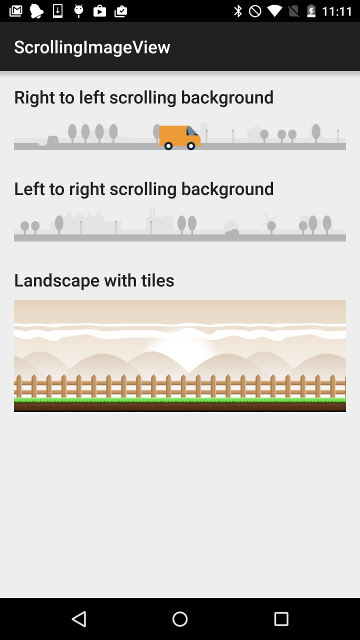
## Sample app
Please see the sample app for some examples
## Usage
In your Android layout file add:
```xml
```
There are two attributes for the `ScrollingImageView` namely `speed` and `src`.
* `speed` is the number of `dp`'s to move the bitmap on each animation frame (may be a negative number)
* `src` is the drawable to paint (**must be a bitmap!**)
Don't forget to add the namespace to your root XLM element
```xml
xmlns:scrolling_image_view="http://schemas.android.com/apk/res-auto"
```
In your Java code, you can start and stop the animation like this:
```java
ScrollingImageView scrollingBackground = (ScrollingImageView) loader.findViewById(R.id.scrolling_background);
scrollingBackground.stop();
scrollingBackground.start();
```
## Parallax effect
In order to achieve a parallax effect, you can stack multiple `ScrollingImageView`'s in a `FrameLayout` with different speeds. For example:
```xml
```