# RealChar
**Repository Path**: mon3tr-v/RealChar
## Basic Information
- **Project Name**: RealChar
- **Description**: No description available
- **Primary Language**: Unknown
- **License**: MIT
- **Default Branch**: Shaunwei-patch-1
- **Homepage**: None
- **GVP Project**: No
## Statistics
- **Stars**: 0
- **Forks**: 0
- **Created**: 2025-05-13
- **Last Updated**: 2025-05-13
## Categories & Tags
**Categories**: Uncategorized
**Tags**: None
## README
#  RealChar. - Your Realtime AI Character
🎙️🤖Create, customize and talk to your AI Character/Companion in realtime🎙️🤖
## ✨ Demo
Try our site at [RealChar.ai](https://realchar.ai/)
### Demo 1 - with AI Elon about cage fight!
https://github.com/Shaunwei/RealChar/assets/5101573/5de0b023-6cf3-4947-84cb-596f429d109e
### Demo 2 - with AI Raiden about AI and "real" memory
https://github.com/Shaunwei/RealChar/assets/5101573/62a1f3d1-1166-4254-9119-97647be52c42
__Demo settings: Web, GPT4, ElevenLabs with voice clone, Chroma, Google Speech to Text__
## 🎯 Key Features
- **Easy to use**: No coding required to create your own AI character.
- **Customizable**: You can customize your AI character's personality, background, and even voice
- **Realtime**: Talk to or message your AI character in realtime
- **Multi-Platform**: You can talk to your AI character on web, terminal and mobile(Yes. we open source our mobile app)
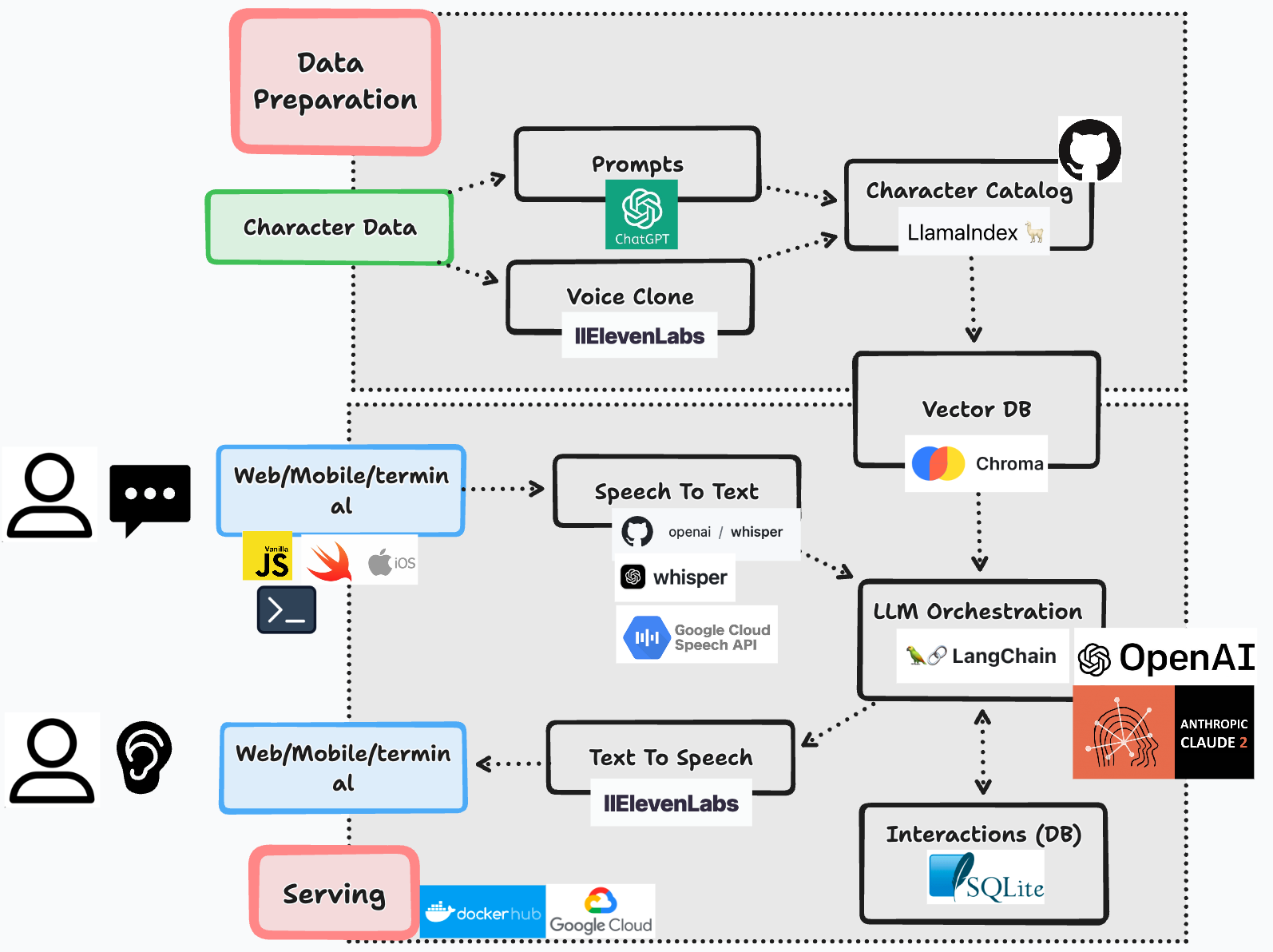
- **Most up-to-date AI**: We use the most up-to-date AI technology to power your AI character, including OpenAI, Anthropic Claude 2, Chroma, Whisper, ElevenLabs, etc.
- **Modular**: You can easily swap out different modules to customize your flow. Less opinionated, more flexible. Great project to start your AI Engineering journey.
## 🔬 Tech stack
- ✅**Web**: [Vanilla JS](http://vanilla-js.com/), [WebSockets](https://developer.mozilla.org/en-US/docs/Web/API/WebSockets_API)
- ✅**Mobile**: [Swift](https://developer.apple.com/swift/), [WebSockets](https://developer.mozilla.org/en-US/docs/Web/API/WebSockets_API)
- ✅**Backend**: [FastAPI](https://fastapi.tiangolo.com/), [SQLite](https://www.sqlite.org/index.html), [Docker](https://www.docker.com/)
- ✅**Data Ingession**: [LlamaIndex](https://www.llamaindex.ai/), [Chroma](https://www.trychroma.com/)
- ✅**LLM Orchestration**: [LangChain](https://langchain.com/), [Chroma](https://www.trychroma.com/)
- ✅**LLM**: [OpenAI GPT3.5/4](https://platform.openai.com/docs/api-reference/chat), [Anthropic Claude 2](https://docs.anthropic.com/claude/docs/getting-started-with-claude)
- ✅**Speech to Text**: [Local Whisper](https://github.com/openai/whisper), [OpenAI Whisper API](https://platform.openai.com/docs/api-reference/audio), [Google Speech to Text](https://cloud.google.com/speech-to-text/docs#docs)
- ✅**Text to Speech**: [ElevenLabs](https://beta.elevenlabs.io/)
- ✅**Voice Clone**: [ElevenLabs](https://beta.elevenlabs.io/voice-lab)
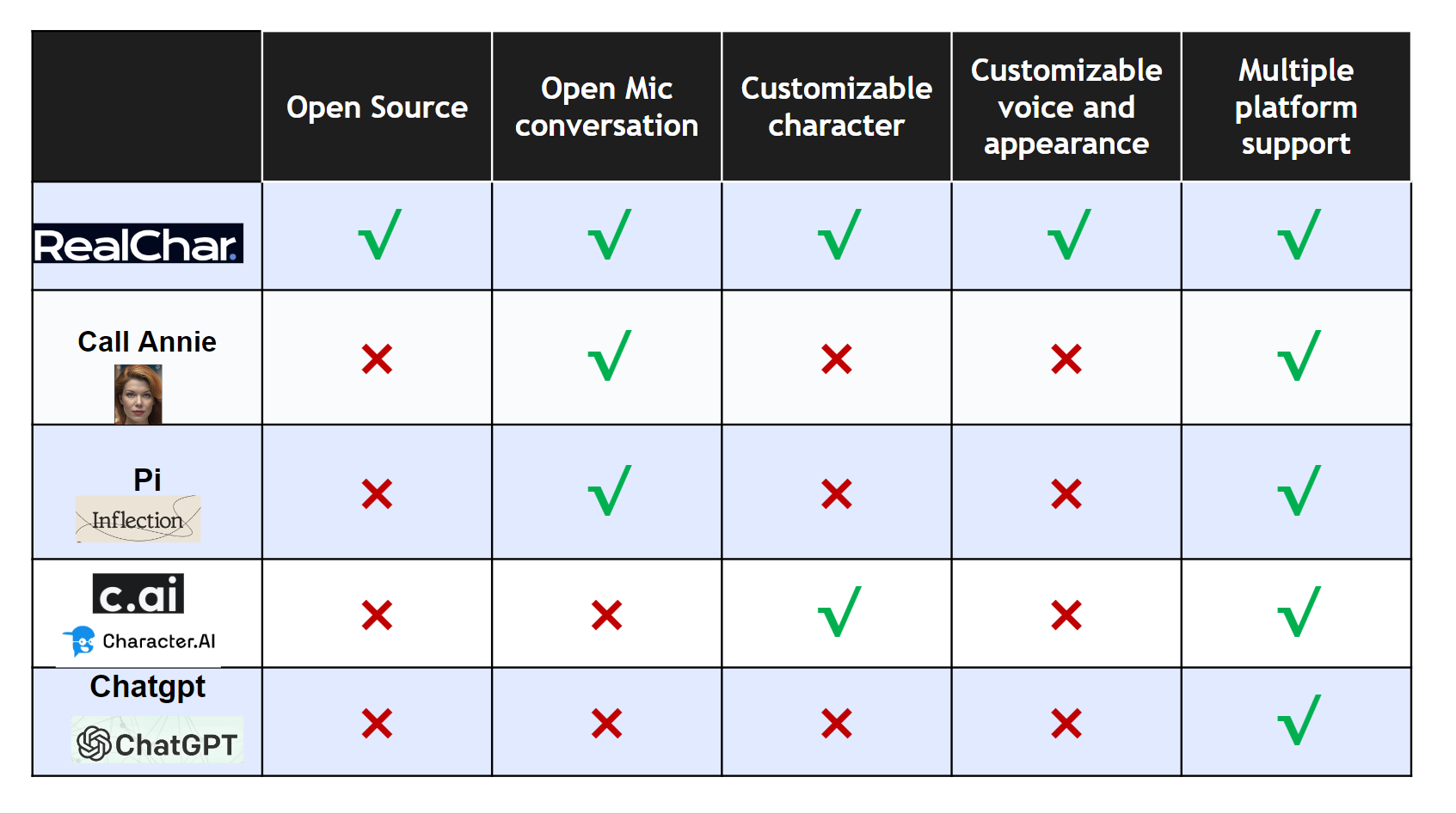
## 📚 Comparison with existing products
## 👨🚀 Prerequisites
Before you begin setting up this project, please ensure you have completed the following tasks:
### 1. LLM - OpenAI API Token
👇click me
This application utilizes the OpenAI API to access its powerful language model capabilities. In order to use the OpenAI API, you will need to obtain an API token.
To get your OpenAI API token, follow these steps:
1. Go to the [OpenAI website](https://beta.openai.com/signup/) and sign up for an account if you haven't already.
2. Once you're logged in, navigate to the [API keys page](https://beta.openai.com/account/api-keys).
3. Generate a new API key by clicking on the "Create API Key" button.
4. Copy the API key and store it safely.
5. Add the API key to your environment variable, e.g. `export OPENAI_API_KEY=`
👇click me
To get your OpenAI API token, follow these steps:
1. Go to the [Anthropic website](https://docs.anthropic.com/claude/docs/getting-started-with-claude) and sign up for an account if you haven't already.
2. Once you're logged in, navigate to the [API keys page](https://console.anthropic.com/account/keys).
3. Generate a new API key by clicking on the "Create Key" button.
4. Copy the API key and store it safely.
5. Add the API key to your environment variable, e.g. `export ANTHROPIC_API_KEY=`
👇click me
To get your Google Cloud API credentials.json, follow these steps:
1. Go to the [GCP website](https://cloud.google.com/speech-to-text/docs/before-you-begin) and sign up for an account if you haven't already.
2. Follow the guide to create a project and enable Speech to Text API
3. Put `google_credentials.json` in the root folder of this project. Check [GCP website](https://cloud.google.com/speech-to-text/docs/before-you-begin#set_your_authentication_environment_variable)
4. Change `SPEECH_TO_TEXT_USE` to use `GOOGLE` in your `.env` file
👇click me
1. Creating an ElevenLabs Account
Visit [ElevenLabs](https://beta.elevenlabs.io/) to create an account. You'll need this to access the text to speech and voice cloning features.
2. In your Profile Setting, you can get an API Key. Save it in a safe place.
3. Set API key in your .env file:
```
ELEVEN_LABS_API_KEY=
```
👇click me
1. Docker image: you can use our docker image directly
```sh
docker pull shaunly/real_char:latest
```
(Or you want build yourself) Build docker image
```sh
python cli.py docker-build
```
If you have issues with docker (especially on a non-Linux machine), please refer to https://docs.docker.com/get-docker/ (installation) and https://docs.docker.com/desktop/troubleshoot/overview/ (troubleshooting).
2. Run docker image with `.env` file
```sh
python cli.py docker-run
```
3. Go to http://localhost:8000 to start talking or use terminal client
```sh
python client/cli.py
```
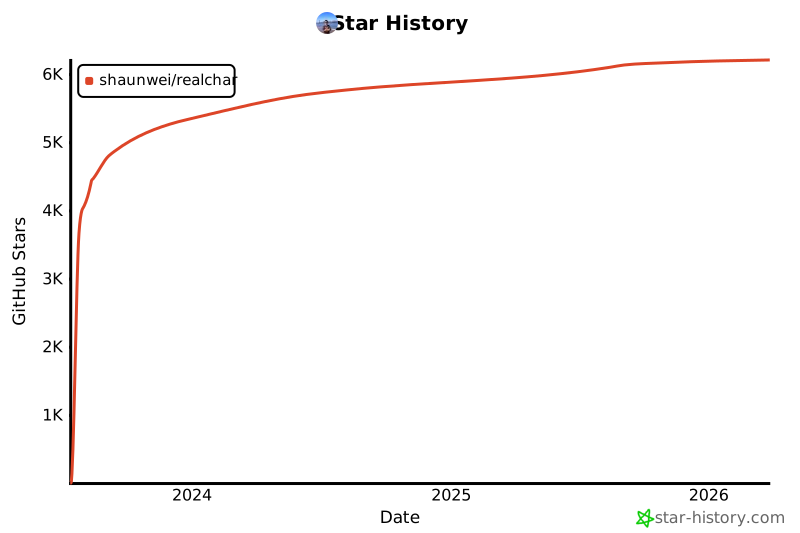
## ⭐️ Star History
[](https://star-history.com/#Shaunwei/RealChar&Date)
## 📍 Roadmap
- [ ] Launch v0.0.0 and build a community
- [ ] Add more characters
- [ ] Move away from Vanilla JS
- [ ] Launch mobile app
- [ ] Add authentication
## 🫶 Contribute to RealChar
Please check out our [Contribution Guide](contribute.md)!
## 🎲 Community
- Join us on [Discord](https://discord.gg/e4AYNnFg2F)