# react_backend
**Repository Path**: chaozwn/react_backend
## Basic Information
- **Project Name**: react_backend
- **Description**: react nextjs
- **Primary Language**: Unknown
- **License**: Not specified
- **Default Branch**: main
- **Homepage**: None
- **GVP Project**: No
## Statistics
- **Stars**: 0
- **Forks**: 0
- **Created**: 2023-04-23
- **Last Updated**: 2023-04-23
## Categories & Tags
**Categories**: Uncategorized
**Tags**: None
## README
# Fullstack Authentication Example with Next.js and NextAuth.js
This example shows how to implement a **fullstack app in TypeScript with [Next.js](https://nextjs.org/)** using [React](https://reactjs.org/) (frontend), [Next.js API routes](https://nextjs.org/docs/api-routes/introduction) and [Prisma Client](https://www.prisma.io/docs/reference/tools-and-interfaces/prisma-client) (backend). It also demonstrates how to implement authentication using [NextAuth.js](https://next-auth.js.org/). The example uses an SQLite database file with some initial dummy data which you can find at [`./prisma/dev.db`](./prisma/dev.db).
Note that the app uses a mix of server-side rendering with `getServerSideProps` (SSR) and static site generation with `getStaticProps` (SSG). When possible, SSG is used to make database queries already at build-time (e.g. when fetching the [public feed](./pages/index.tsx)). Sometimes, the user requesting data needs to be authenticated, so SSR is being used to render data dynamically on the server-side (e.g. when viewing a user's [drafts](./pages/drafts.tsx)).
## Getting started
### 1. Download example and install dependencies
Download this example:
```
npx try-prisma@latest --template typescript/rest-nextjs-api-routes-auth
```
Install npm dependencies:
```
cd rest-nextjs-api-routes-auth
npm install
```
Alternative: Clone the entire repo
Clone this repository:
```
git clone git@github.com:prisma/prisma-examples.git --depth=1
```
Install npm dependencies:
```
cd prisma-examples/typescript/rest-nextjs-api-routes-auth
npm install
```
### 2. Create and seed the database
Run the following command to create your SQLite database file. This also creates the `User` and `Post` tables that are defined in [`prisma/schema.prisma`](./prisma/schema.prisma):
```
npx prisma migrate dev --name init
```
When `npx prisma migrate dev` is executed against a newly created database, seeding is also triggered. The seed file in [`prisma/seed.ts`](./prisma/seed.ts) will be executed and your database will be populated with the sample data.
### 3. Configuring your authentication provider
In order to get this example to work, you need to configure the [GitHub](https://next-auth.js.org/providers/github) and/or [Email](https://next-auth.js.org/providers/email) authentication providers from NextAuth.js.
#### Configuring the GitHub authentication provider
Expand to learn how you can configure the GitHub authentication provider
First, log into your [GitHub](https://github.com/) account.
Then, navigate to [**Settings**](https://github.com/settings/profile), then open to [**Developer Settings**](https://github.com/settings/apps), then switch to [**OAuth Apps**](https://github.com/settings/developers).
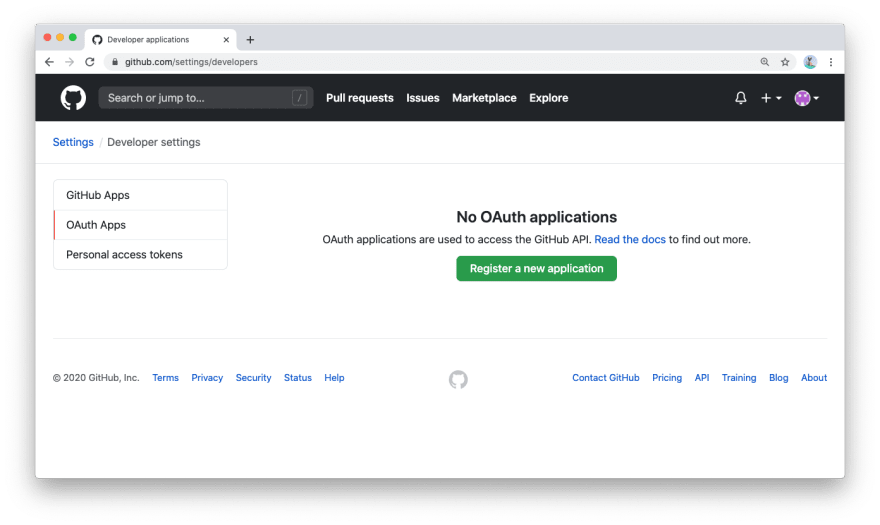
Clicking on the **Register a new application** button will redirect you to a registration form to fill out some information for your app. The **Authorization callback URL** should be the Next.js `/api/auth` route.
An important thing to note here is that the **Authorization callback URL** field only supports a single URL, unlike e.g. Auth0, which allows you to add additional callback URLs separated with a comma. This means if you want to deploy your app later with a production URL, you will need to set up a new GitHub OAuth app.

Click on the **Register application** button, and then you will be able to find your newly generated **Client ID** and **Client Secret**. Copy and paste this info into the [`.env`](./env) file in the root directory.
The resulting section in the `.env` file might look like this:
```
# GitHub oAuth
GITHUB_ID=6bafeb321963449bdf51
GITHUB_SECRET=509298c32faa283f28679ad6de6f86b2472e1bff
```
#### Configuring the Email authentication provider
You can [follow the instructions in the NextAuth.js documentation](https://next-auth.js.org/providers/email#configuration) to configure the Email authentication provider. Once your email authentication provider is configured, you can set the environment variables in [`.env`](./env) accordingly.
### 4. Start the app
```
npm run dev
```
The app is now running, navigate to [`http://localhost:3000/`](http://localhost:3000/) in your browser to explore its UI.
## Evolving the app
Evolving the application typically requires three steps:
1. Migrate your database using Prisma Migrate
1. Update your server-side application code
1. Build new UI features in React
For the following example scenario, assume you want to add a "profile" feature to the app where users can create a profile and write a short bio about themselves.
### 1. Migrate your database using Prisma Migrate
The first step is to add a new table, e.g. called `Profile`, to the database. You can do this by adding a new model to your [Prisma schema file](./prisma/schema.prisma) file and then running a migration afterwards:
```diff
// schema.prisma
model Post {
id Int @default(autoincrement()) @id
title String
content String?
published Boolean @default(false)
author User? @relation(fields: [authorId], references: [id])
authorId Int
}
model User {
id Int @default(autoincrement()) @id
name String?
email String @unique
posts Post[]
+ profile Profile?
}
+model Profile {
+ id Int @default(autoincrement()) @id
+ bio String?
+ userId Int @unique
+ user User @relation(fields: [userId], references: [id])
+}
```
Once you've updated your data model, you can execute the changes against your database with the following command:
```
npx prisma migrate dev
```
### 2. Update your application code
You can now use your `PrismaClient` instance to perform operations against the new `Profile` table. Here are some examples:
#### Create a new profile for an existing user
```ts
const profile = await prisma.profile.create({
data: {
bio: "Hello World",
user: {
connect: { email: "alice@prisma.io" },
},
},
});
```
#### Create a new user with a new profile
```ts
const user = await prisma.user.create({
data: {
email: "john@prisma.io",
name: "John",
profile: {
create: {
bio: "Hello World",
},
},
},
});
```
#### Update the profile of an existing user
```ts
const userWithUpdatedProfile = await prisma.user.update({
where: { email: "alice@prisma.io" },
data: {
profile: {
update: {
bio: "Hello Friends",
},
},
},
});
```
### 3. Build new UI features in React
Once you have added a new endpoint to the API (e.g. `/api/profile` with `/POST`, `/PUT` and `GET` operations), you can start building a new UI component in React. It could e.g. be called `profile.tsx` and would be located in the `pages` directory.
In the application code, you can access the new endpoint via `fetch` operations and populate the UI with the data you receive from the API calls.
## Switch to another database (e.g. PostgreSQL, MySQL, SQL Server, MongoDB)
If you want to try this example with another database than SQLite, you can adjust the the database connection in [`prisma/schema.prisma`](./prisma/schema.prisma) by reconfiguring the `datasource` block.
Learn more about the different connection configurations in the [docs](https://www.prisma.io/docs/reference/database-reference/connection-urls).
Expand for an overview of example configurations with different databases
### PostgreSQL
For PostgreSQL, the connection URL has the following structure:
```prisma
datasource db {
provider = "postgresql"
url = "postgresql://USER:PASSWORD@HOST:PORT/DATABASE?schema=SCHEMA"
}
```
Here is an example connection string with a local PostgreSQL database:
```prisma
datasource db {
provider = "postgresql"
url = "postgresql://janedoe:mypassword@localhost:5432/notesapi?schema=public"
}
```
### MySQL
For MySQL, the connection URL has the following structure:
```prisma
datasource db {
provider = "mysql"
url = "mysql://USER:PASSWORD@HOST:PORT/DATABASE"
}
```
Here is an example connection string with a local MySQL database:
```prisma
datasource db {
provider = "mysql"
url = "mysql://janedoe:mypassword@localhost:3306/notesapi"
}
```
### Microsoft SQL Server
Here is an example connection string with a local Microsoft SQL Server database:
```prisma
datasource db {
provider = "sqlserver"
url = "sqlserver://localhost:1433;initial catalog=sample;user=sa;password=mypassword;"
}
```
### MongoDB
Here is an example connection string with a local MongoDB database:
```prisma
datasource db {
provider = "mongodb"
url = "mongodb://USERNAME:PASSWORD@HOST/DATABASE?authSource=admin&retryWrites=true&w=majority"
}
```
## Next steps
- Check out the [Prisma docs](https://www.prisma.io/docs)
- Share your feedback in the [`#product-wishlist`](https://prisma.slack.com/messages/CKQTGR6T0/) channel on the [Prisma Slack](https://slack.prisma.io/)
- Create issues and ask questions on [GitHub](https://github.com/prisma/prisma/)
- Watch our biweekly "What's new in Prisma" livestreams on [Youtube](https://www.youtube.com/channel/UCptAHlN1gdwD89tFM3ENb6w)