# crysyan
**Repository Path**: Bping/crysyan
## Basic Information
- **Project Name**: crysyan
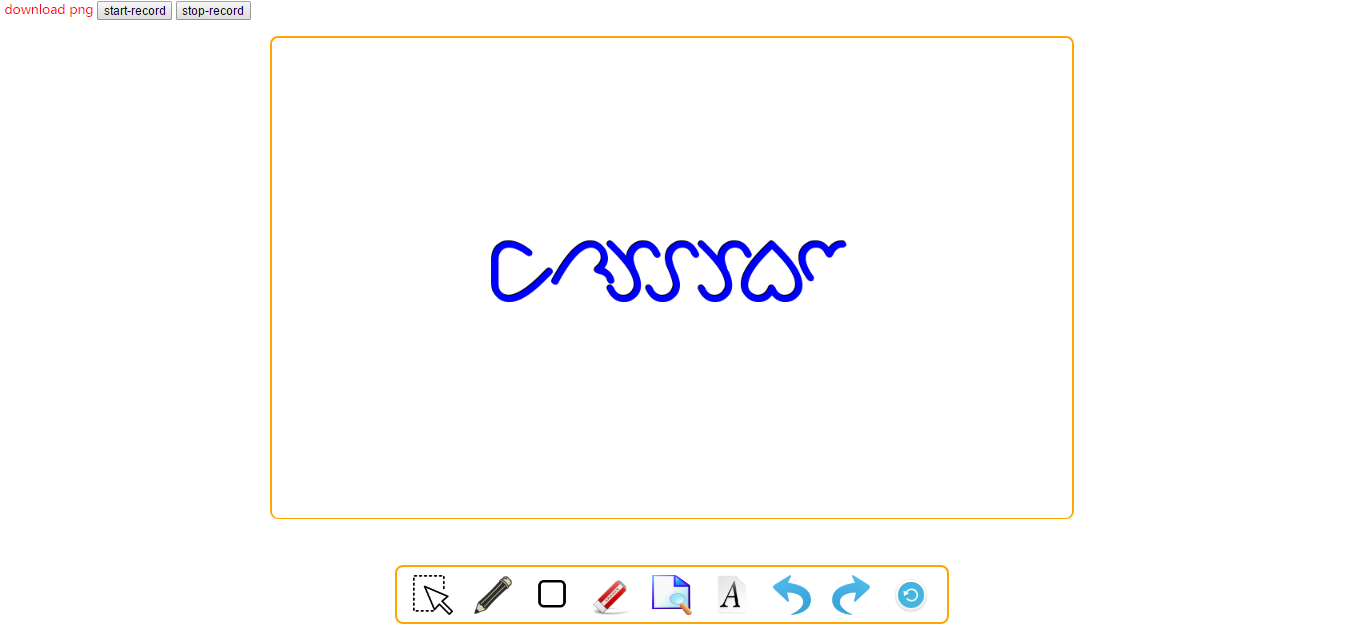
- **Description**: a web drawing board with canvas
- **Primary Language**: JavaScript
- **License**: Apache-2.0
- **Default Branch**: master
- **Homepage**: https://home.cbping.vip/crysyan/
- **GVP Project**: No
## Statistics
- **Stars**: 4
- **Forks**: 0
- **Created**: 2016-12-01
- **Last Updated**: 2020-12-19
## Categories & Tags
**Categories**: webui
**Tags**: None
## README
# crysyan
[](https://npmjs.org/package/crysyan) [](https://npmjs.org/package/crysyan) [](https://travis-ci.org/BPing/crysyan)
a web drawing board with canvas
> home: [https://home.cbping.vip/crysyan/](https://home.cbping.vip/crysyan/)
> demo: [https://home.cbping.vip/crysyan/demo-index.html](https://home.cbping.vip/crysyan/demo-index.html)
`nodejs`
```cmd
- npm install crysyan -g
- crysyan
visit http://locolhost:9001 with browser
```
# Index
* [Compatibility](#Compatibility)
* [Quick start](#Quick_start)
* [Directory](#Directory)
* [Build-in](#Version)
* [API Reference](#API)
* [Dependence](#Dependence)
* [Reference](#Reference)
* [License](#License)
* [Version](#Version)
* [**](#**)
# Quick start
* your.html
```html
```
* your.js
```javascript
// jquery
$(".crysyan-designer").CrysyanDesigner({
canvas: {
// px
width: 900,
height: 500
},
}, function(designer) {
console.dir(designer);
});
// another
// var designer=CrysyanDesigner({
// canvas: {
// // px
// width: 900,
// height: 500
// },
// toolbar: {
// length: 500
// }
// }, function(designer) {
// console.dir(designer);
// });
// designer.appendTo(document.getElementsByClassName("crysyan-designer"));
```
# Directory
/ -->
css/ --> css
html/ --> view
img/ --> used to place the tool icon file
js/ --> javascript file
# Compatibility
Is not very accurate, because it is estimated base on a variety of attribute , and not really completely tested.
But It can be a reference for you.
Feature | Chrome | Firefox |IE
--- | :----:| :----:| ---
Turn the canvas into a picture and save | 4+ | 3.6(1.9.2) | 9+
CORS enabled image | 13+ | (Gecko)8+ | No support
Record Canvas(video/webM) | 30+ | 30+ | No support
# Build-in
## widgets
You can use config for below widgets.
Sets the widgets needed for a particular instance of a artboard.
```
config{
toolbar: {
widgets:
["CursorWidget",
"PencilWidget",
"EraserWidget",
"ImageWidget",
"UndoWidget",
"IndoGoWidget",
"ClearWidget",
"ShapeWidget",
"TextWidget"
],
}
}
```
1. `pencil` --- `PencilWidget` to write/draw shapes
2. `eraser` --- `EraserWidget` to erase/clear specific portion of shapes
3. `image` --- `ImageWidget` add external images
4. `uodo` --- `UndoWidget` revoke history of canvas
5. `indo-go` --- `IndoGoWidget` forward revoke history of canvas
6. `clear` --- `ClearWidget` clear canvas
7. `shape` --- `ShapeWidget` draw graphics(Square、Circular、Triangle)
8. `text` --- `TextWidget` input text
## gulp
1、First of all,you need install node.js and gulp and gulp's add-ons which used in gulpfile.js.
2、You can choose which widgets you need to include,in other word, widgets that you can provide to users.
Look `gulpfile.js` as follows:
```javascript
widgetPath="js/widget/";
// widgetsLoad = [widgetPath+"*.js"]; or
widgetsLoad = [
// widget's file name
widgetPath+"cursor.js",
widgetPath+"pencil.js",
widgetPath+"eraser.js",
widgetPath+"image.js",
widgetPath+"undo.js",
widgetPath+"into-go.js",
widgetPath+"clear.js"];
```
3、build.
```cmd
>gulp build
```
After build successfully.
You can find a 'crysyan' folder,the JS files under this folder have been compressed, which can be used in your project, under the 'dist' folder
Include in your html file Just like that:
```html
```
`projectPath` is the root directory where the 'crysyan' project is located.
# API Reference
* **CrysyanDesigner**
### `appendTo`
CrysyanDesigner is a widget; that widget should be appended to a DOM object.
This method allows you pass `` or any other HTMLDOMElement.
```javascript
designer.appendTo(document.body || document.documentElement);
```
The correct name for `appendTo` is: `append-iframe to target HTML-DOM-element`
### `destroy`
If you want to remove the widget from your HTMLDOMElement.
```javascript
designer.destroy();
```
### `getView`
You can get a view `CrysyanView` instance from child `iframe`:
```javascript
designer.getView();
```
### `drawBackgroupWithImage` or `drawBackgroundWithImage`
Draw a image on a canvas as background.
1、draw `DataUrl` :
recommended to replace by`#4`(`draw image-path`)
```javascript
var dataurl = "data:image/png;base64,iVBORw0KGgoAAAANSUhEUgAAACAAAAAgCAMAAABEpIr
GAAAADFBMVEVYWFhVVVUAAABUVFTqqlXjAAAAA3RSTlMxdACUjPeLAAAATElEQVR42u3SQQrAMAwDQSn
7/z+XFExTcOxroN3zgC4STecApy1gpP2gBgZXQMwKwJ23QITYACLlQBC9gAFNwJMXoJhVc7lBA/gsuAAr
EgqPcT12VgAAAABJRU5ErkJggg=="
designer.drawBackgroupWithImage(dataurl);
```
2、draw `Image` :
```javascript
var image=new Image()
image.src="imagePath";
designer.drawBackgroupWithImage(image);
// designer.drawBackgroundWithImage(image);
```
3、draw `File` :
```javascript
var file=new File()
// do something
designer.drawBackgroupWithImage(file);
//designer.drawBackgroundWithImage(file);
```
4、draw `image-path`:
Usually, you need to add "../../" in front of the relative directory to roll back to the root directory where the 'crysyan' project is located
```javascript
designer.drawBackgroupWithImage("../../img/a.png");
//designer.drawBackgroundWithImage("../../img/a.png");
```
### `toDataUrl`
Get data-URL of your drawings!
```javascript
window.open(designer.toDataURL('image/png'));
```
you can download the png:
> **Note:** focus on attribute of `download` of `` tag
`html`:
```html
download png
```
`javascript`
```javascript
$("#download-png").click(function () {
document.getElementById("download-png").href=designer.toDataURL('image/png');
});
```
### `getCanvasRecorder`
Get `RecordRTC` of your drawings,which used to record canvas to video(video/webm).Does not supported in IE browser.
First,you should set `isRecord=true` if you want to record.
API of RecordRTC,see:[RecordRTC API Reference](http://recordrtc.org/RecordRTC.html)
`example:`
`html`:
```html
ddd
```
`javascript`
```javascript
var recorder = designer.getCanvasRecorder();
$("#start-record").click(function () {
console.log("recording");
recorder.initRecorder();
recorder.startRecording();
});
$("#stop-record").click(function () {
console.log("stop");
recorder.stopRecording(function() {
var blob = recorder.getBlob();
var video = document.createElement('video');
video.src = URL.createObjectURL(blob);
video.setAttribute('style', 'height: 100%; position: absolute; top:0; left:0;z-index:9999;width:100%;');
document.body.appendChild(video);
video.controls = true;
video.play();
});
});
```
### `iframe`
You can access designer iframe as following:
```javascript
designer.iframe.style.border = '5px solid red';
window.open(designer.iframe.src);
```
`designer.iframe` will be `null/undefined` until you call `appendTo`. So always use this code-block:
```javascript
if(!designer.iframe) {
designer.appendTo(document.body);
}
designer.iframe.style.border = '5px solid red';
```
* **Config**
The configuration of the entire project.
> **Note:**The unit of length is: px.
```javascript
var designer=CrysyanDesigner({
ifrName:"",
projectPath:"",
isRecord:false,
cssFile:"",
canvas: {
// px
width: 900,
height: 500,
historyListLen:50
},
toolbar: {
widgetLength: 50,
widgets:
[
"CursorWidget",
"PencilWidget",
"EraserWidget",
"ImageWidget",
"UndoWidget",
"IndoGoWidget",
"ClearWidget"],
}
}
}, function(designer) {
console.dir(designer);
});
```
### `ifrName`
Name of iframe.
You do not need to set this value if it is not necessary.
Normally, the default value is OK
### `projectPath`
Path of crysyan project.
### `isRecord`
Whether to open the recording feature.Default:`false`.
### `cssFile`
Default:`empty string`,load inner css.
If you not need load the css(include inner css).set the value of it to not string type
### `canvas`
* `width`
Width of the canvas.
* `height`
Height of the bottom canvas*
* `historyListLen` `default:50`
the most length of history 'revoke' list. Normally, the default value is OK.
### `toolbar`
* `widgetLength`
The length of each tool icon.
* `widgets`
The widgets you want to use. see `build-in/widgets`.
Normally, the default value is OK.
Add New Tools Widgets
For example: add a `shape`'s widget.
## First Step
Create a file `shape.js` to implement your tool's facility code ,under the folder `js/widget/`.
1、the shape widget must be a replica copy from `CrysyanWidget`.
```javascript
(function($widget) {
'use strict';
var CrysyanShapeWidget = $widget.clone();
....
// the name of widget type must be unique.
Shape.CrysyanWidgetType = "CrysyanShapeWidget";
// export to window
window.CrysyanShapeWidget = CrysyanShapeWidget;
})(CrysyanWidget);
```
2、`CrysyanWidget`
**Properties:**
#### `crysyanCanvas`
An instance of `crysyanCanvas` with which you can draw canvas.
```javascript
var ctx = Shape.crysyanCanvas.playContext;
```
#### `prePoint`
Record the previous point coordinates `prePoint.loc` and event `prePoint.e`
#### `isDown`
when the mouse down,`isDown` will be true.
**Methods**: can be overridden.
####`mouseDown`: function(e, loc) {}
when the mouse down in canvas,it will be called. `e` a window event object,`loc` point coordinates in canvas.
####`mouseUp`:
when the mouse up in canvas,it will be called.
####`mouseMove`:
when the mouse move in canvas,it will be called.
####`iconClick`: function(ele, e) {},
when click the widget's icon ,it will be called. `ele` widget's html element,`e` a window event object.
####`iconLeave`:
when click and select a new widget's icon and leave selected older ,it will be called.
## Second Step
Put your widget's icon `shape.png` under the folder `img/`.
## Third Step
Open `config.js` and append following snippet to `window.CrysyanWidgetConfig`.
```javascript
ShapeWidget: {
// Variable name export to window
exportVar: "CrysyanShapeWidget",
// Name of js file
jsFile: "shape.js",
// Icon and Name of widget in toolbar
icon: "shape.png",
name: "shape"
},
```
Then, append variable `ShapeWidget` above to `window.CrysyanDefaultConfig.toolbar.widgets`.
```javascript
widgets: [...,"ShapeWidget",...]
```
## Four Step
Open `gulpfile.js`,append ` widgetPath+"shape.js",` to `widgetsLoad` array,if you want to built-in.
# Dependence
* jQuery
* [RecordRTC](https://github.com/muaz-khan/WebRTC-Experiment/edit/master/RecordRTC/RecordRTC.js): Record Canvas2D.
# Reference
* [Canvas-Designer](https://github.com/muaz-khan/WebRTC-Experiment/tree/master/Canvas-Designer)
# License
Apache License Version 2.0
# Version History
* [0.0.9](https://home.cbping.vip/crysyan/demo-0.0.9/index.html)
> 1、simple UI version.
> 2、draw image to canvas's backgroup and covert canvas to image(png).
> 3、widgets:simple pencil、eraser、iamge、clear、revoke and anti-revoke.
* [0.1.1](https://home.cbping.vip/crysyan/demo-0.1.1/index.html)
> feature:
> record canvas.
* [0.1.2](https://home.cbping.vip/crysyan/demo-0.1.2/index.html)
> feature:
> UI style upgrade.
* [0.1.3.beta](https://home.cbping.vip/crysyan/demo-0.1.3.beta/index.html)
> feature:
> 1、add shape widget.
> 2、second-level menu for pencil、eraser and shape widgets.
> 3、add touch event for canvas event.
> 4、via variable `historyListLen`,set the historical canvas's record length.
> fix:
> 1、tool icon: draggable=false.
* [0.1.3](https://home.cbping.vip/crysyan/demo-0.1.3/index.html)
> fix:
> 1、background image scaling exceptions
* [0.1.3.fix20170310](https://home.cbping.vip/crysyan/demo-0.1.3.fix20170310/index.html)
* add `drawBackgroundWithImage` for `drawBackgroupWithImage` For compatibility, two methods exist simultaneously
* fix :
* edge background color when erasing ,exclude `path` shape of eraser.
* background image scaling exception when `mode`=1.
* [0.2.0](https://home.cbping.vip/crysyan/demo-0.2.0/index.html)
* add a simple text input widget
* add project icon
* publish to npm